TASC Observe: complete module walkthrough
Collect field observations, review open findings and convert material issues into action.
Watch first
Captioned walkthrough using the real TASC screen
Do the task
Follow these steps in order
Open Observe and choose the view
Set the period and site, then review the current observation score, open findings and trend panels.
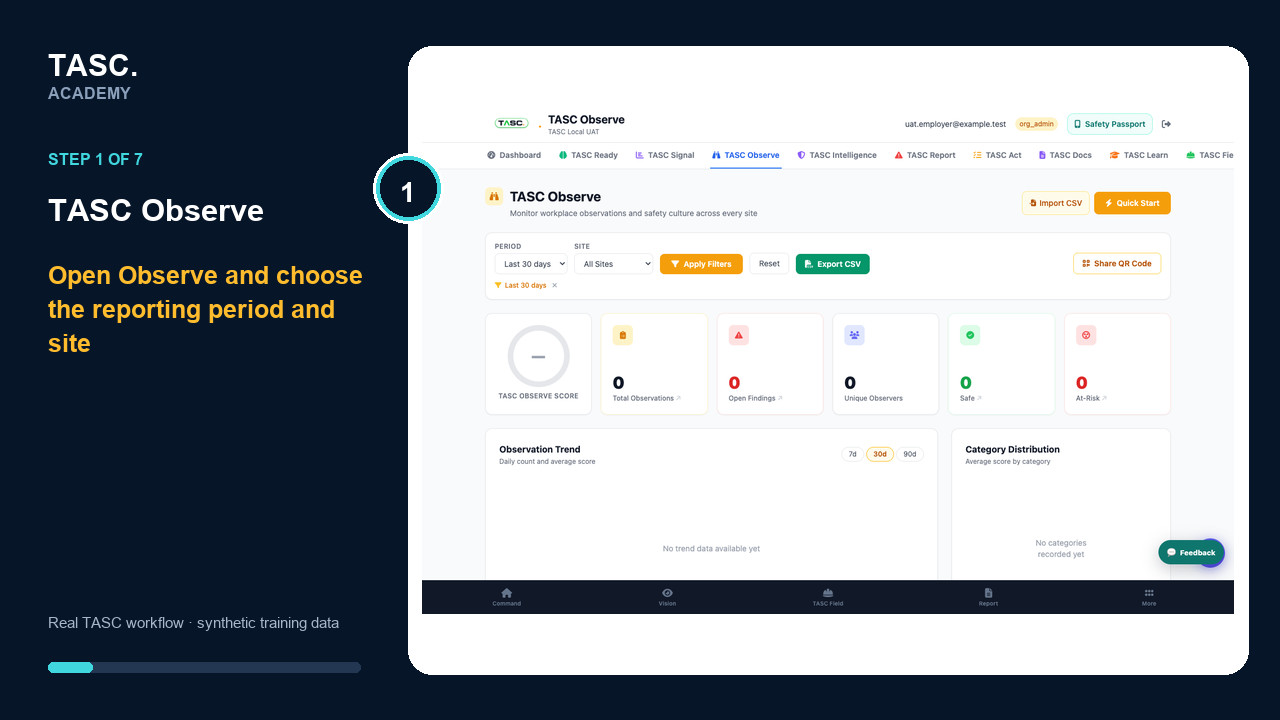 Step 1: Open Observe and choose the view
Create and label the Observe QR
Generate the code for its physical location and state who can submit and what the observation is for.
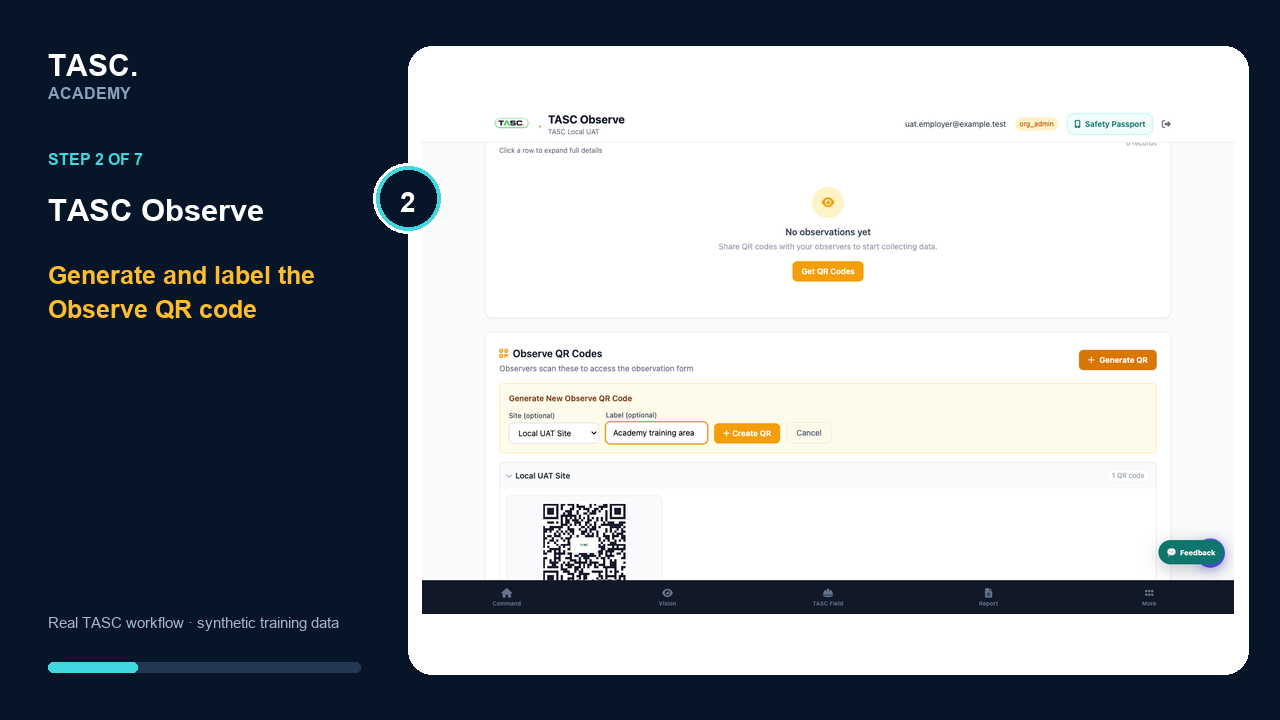 Step 2: Create and label the Observe QR
Enter the work context
Select the site and describe the department, crew and activity so the observation can be interpreted correctly.
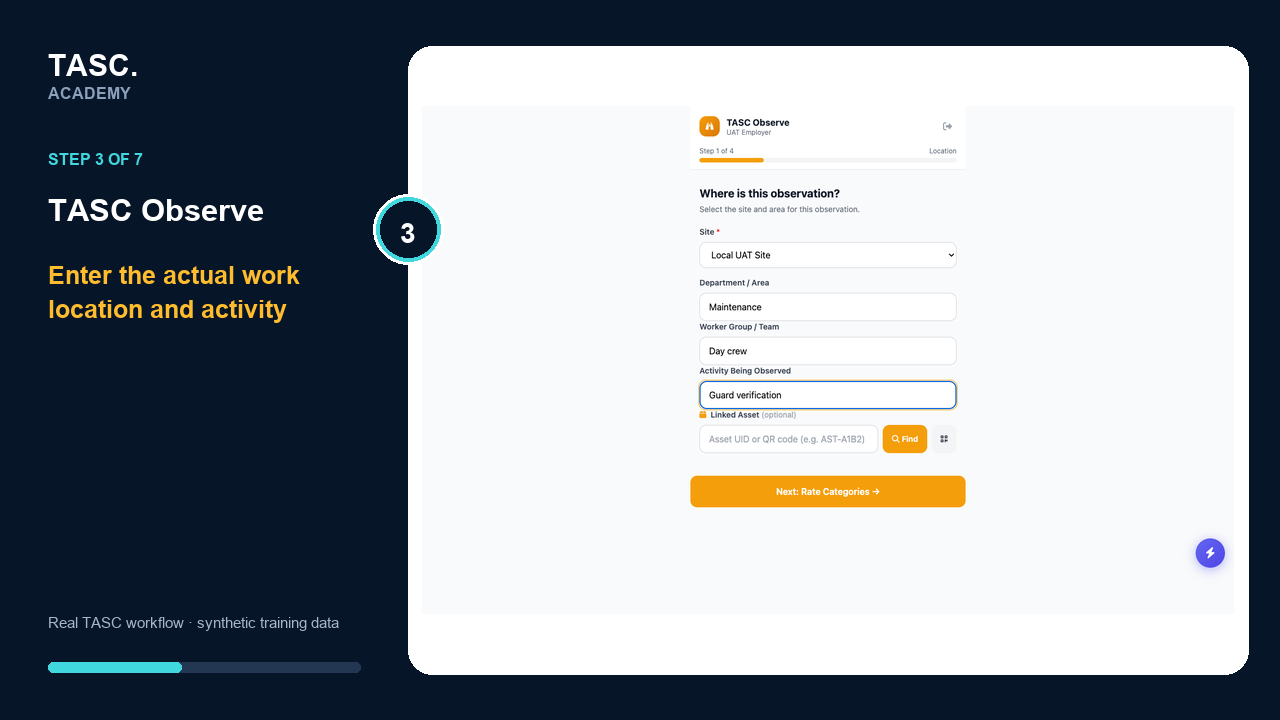 Step 3: Enter the work context
Rate the configured categories
Work through the real rating form and add evidence only where it supports the observation.
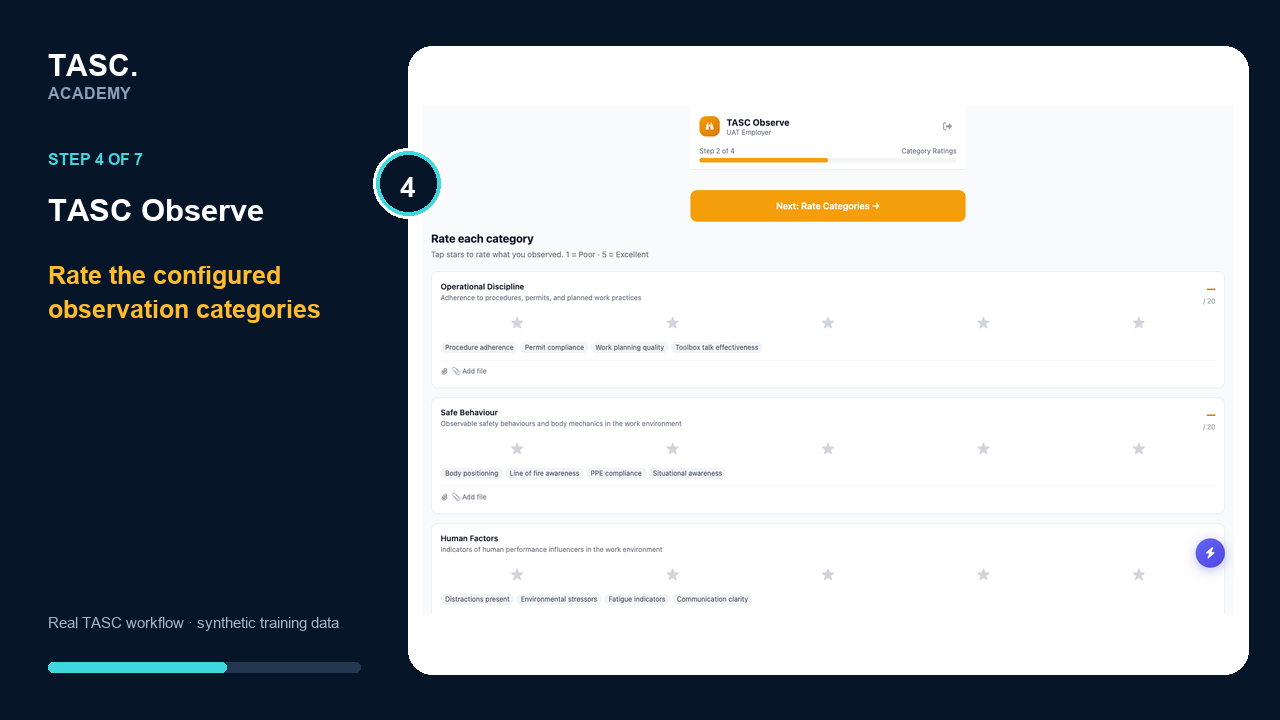 Step 4: Rate the configured categories
Review before submission
Confirm the site, work context, category scores and notes, then submit or go back to correct the record.
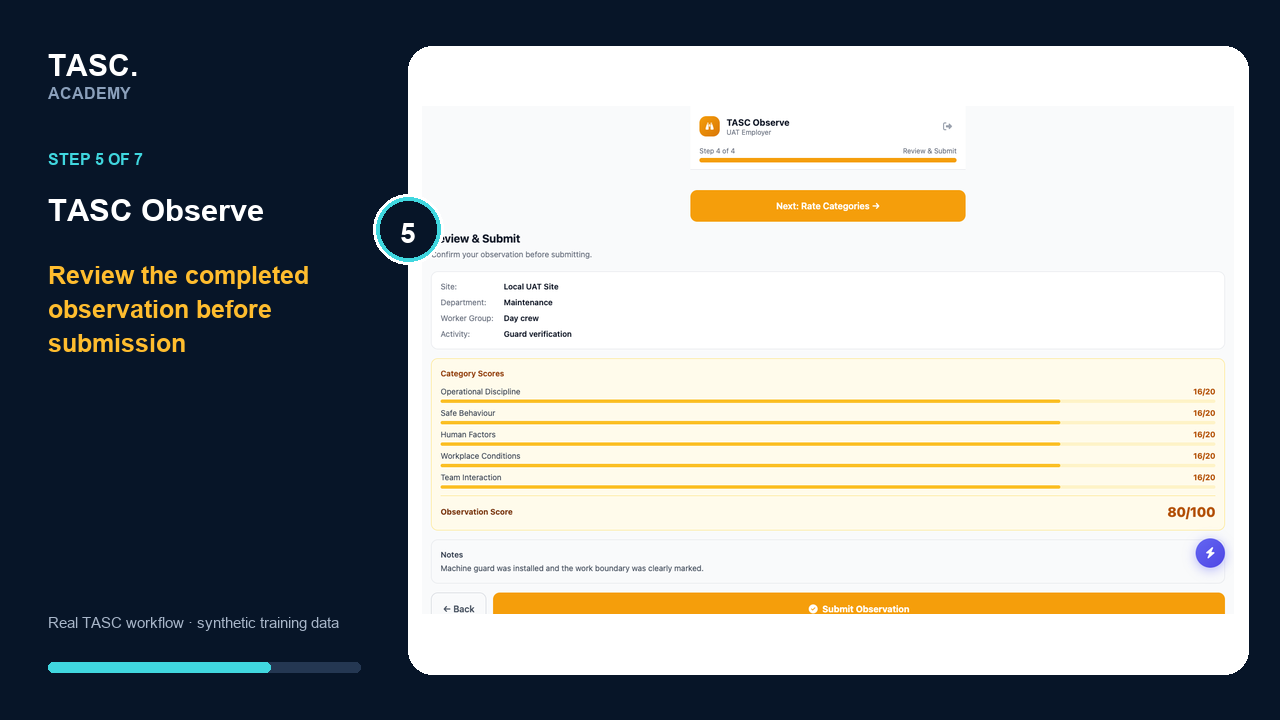 Step 5: Review before submission
Confirm the saved observation
Submit once and retain the observation reference shown on the confirmation screen.
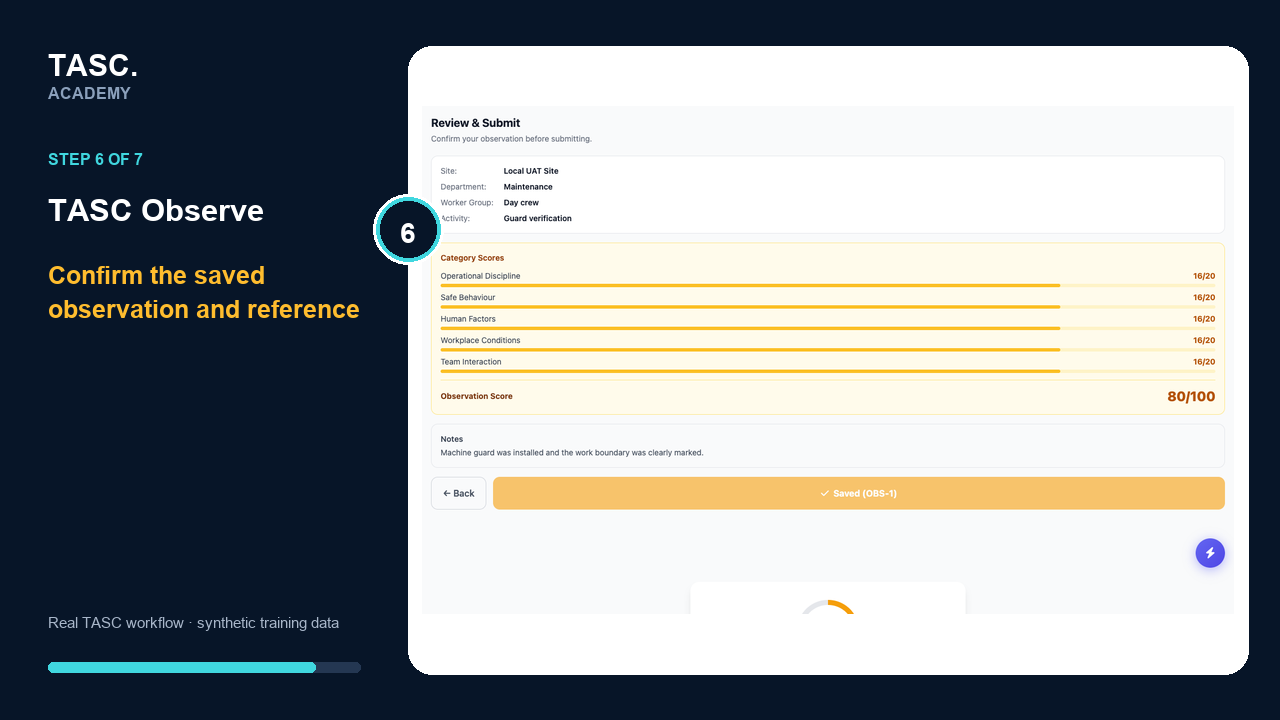 Step 6: Confirm the saved observation
Review the employer record
Return to Observe and verify that the new record reached the intended site view and follow-up queue.
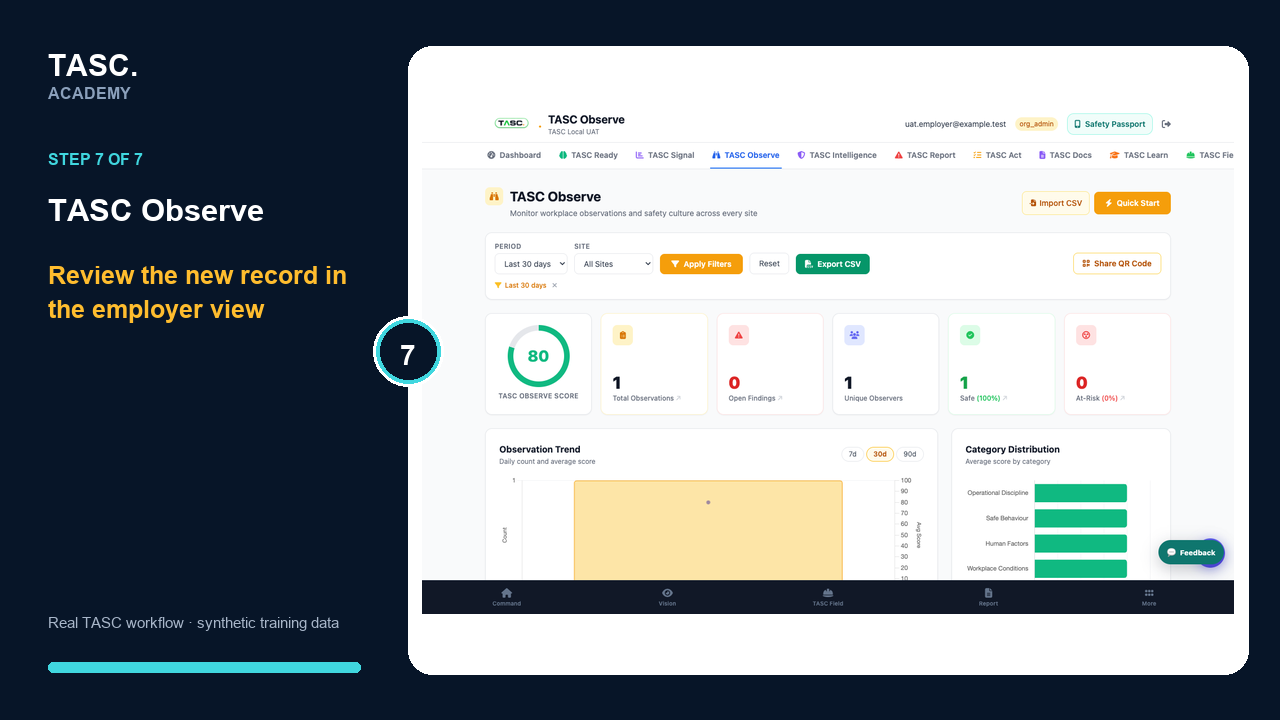 Step 7: Review the employer record
Check that it worked
- The QR opens the current Observe form
- A test observation reaches the correct site view
- Open findings have a clear status
- Material issues create traceable follow-up
If something goes wrong
The observation reaches the wrong site.
Deactivate the code and replace it with one created for the correct site.
A finding remains open without follow-up.
Assign an owner or convert it to a corrective action with a due date.
Before you begin and supporting details
Before you begin
- Access to the module and the correct site
- A synthetic test case before using live operational information
- A named person responsible for reviewing the result