Troubleshoot access, invitations and QR codes
Resolve the most common entry problems without weakening permissions or using the wrong site link.
Watch first
Captioned walkthrough using the real TASC screen
Do the task
Follow these steps in order
Identify the person and entry path
Confirm whether the person is an organization user, connected worker, invited worker or public QR participant.
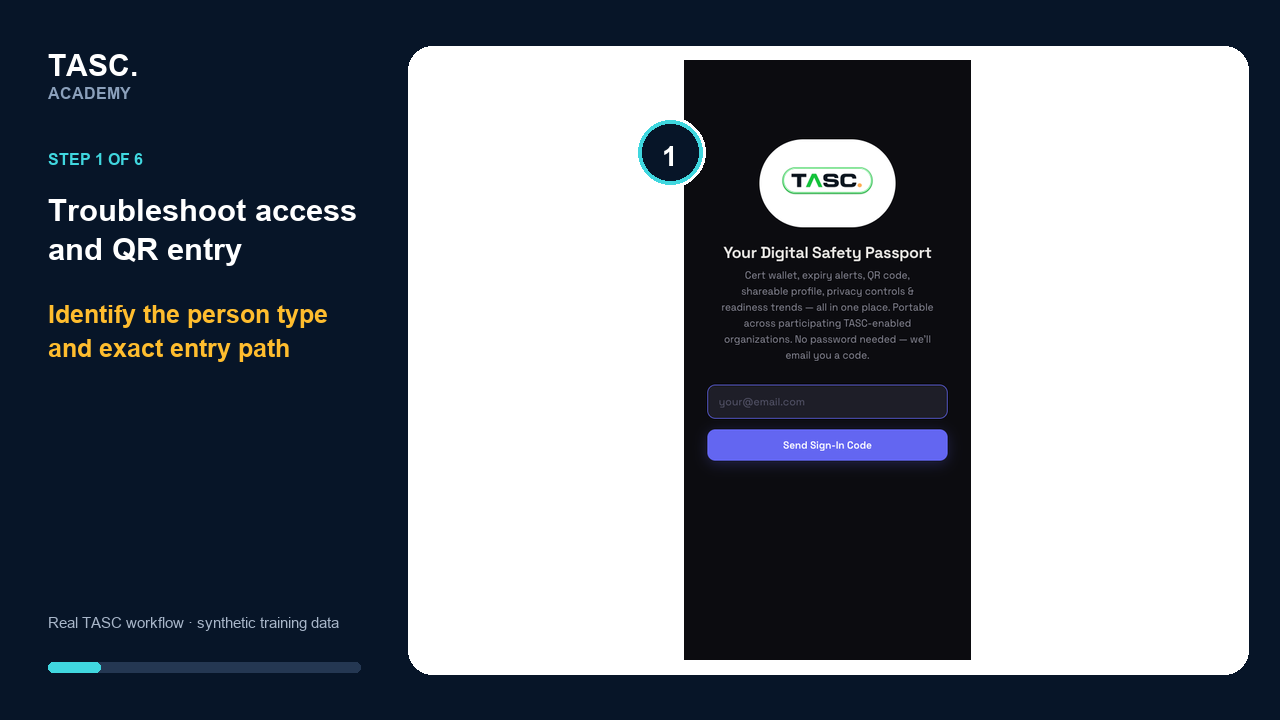 Step 1: Identify the person and entry path
Check role and permission profile
Confirm the required module and platform surfaces are enabled for authenticated users.
 Step 2: Check role and permission profile
Check invitation state
Review whether the invitation is pending, accepted, declined, expired, cancelled or already connected.
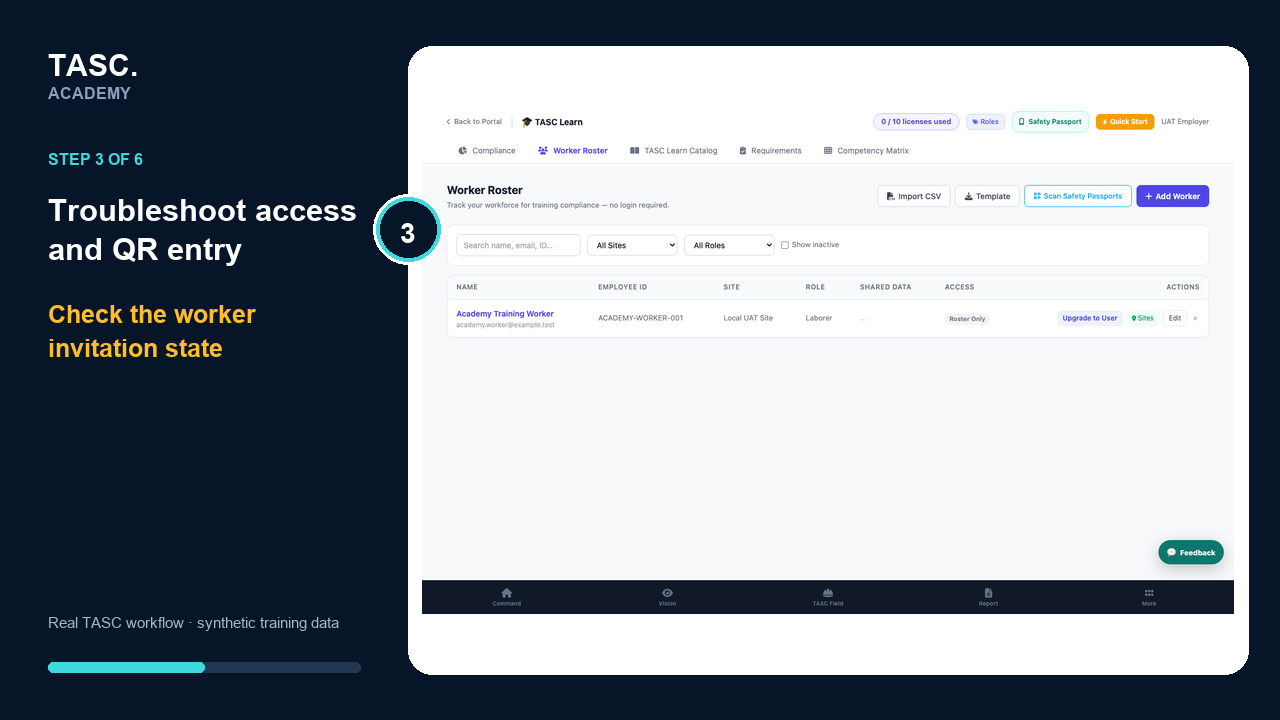 Step 3: Check invitation state
Check QR scope and status
Confirm workflow, site, shift or asset context and whether the code is still active.
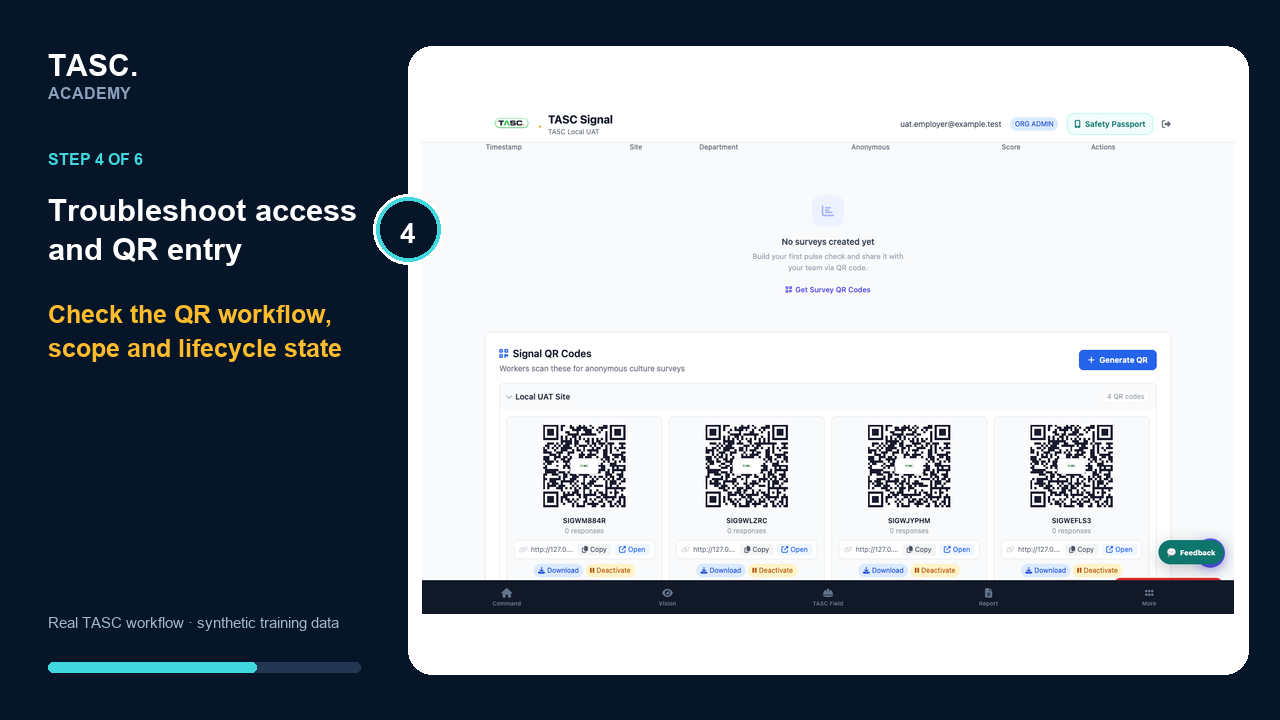 Step 4: Check QR scope and status
Retry safely
Use the correct resend, replacement or sign-in path rather than broadening permissions as a workaround.
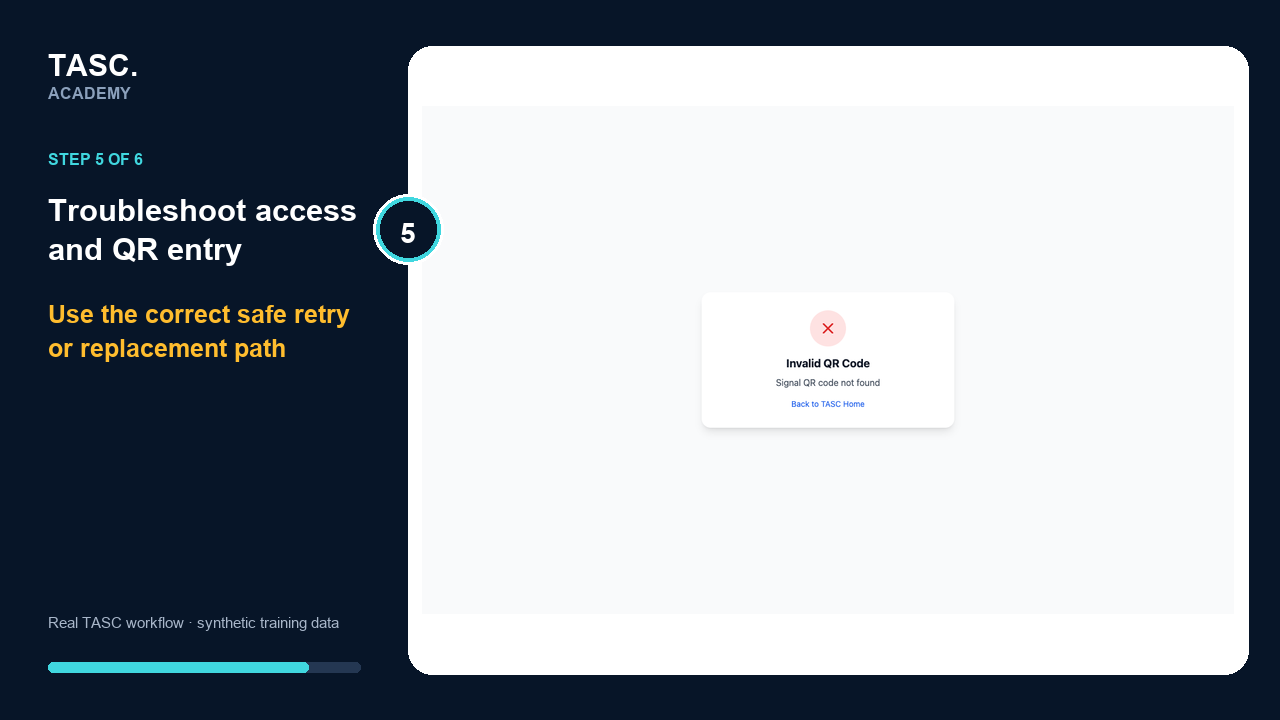 Step 5: Retry safely
Escalate with useful context
Record the role, route, time, expected outcome and non-sensitive error text without sending tokens or worker information.
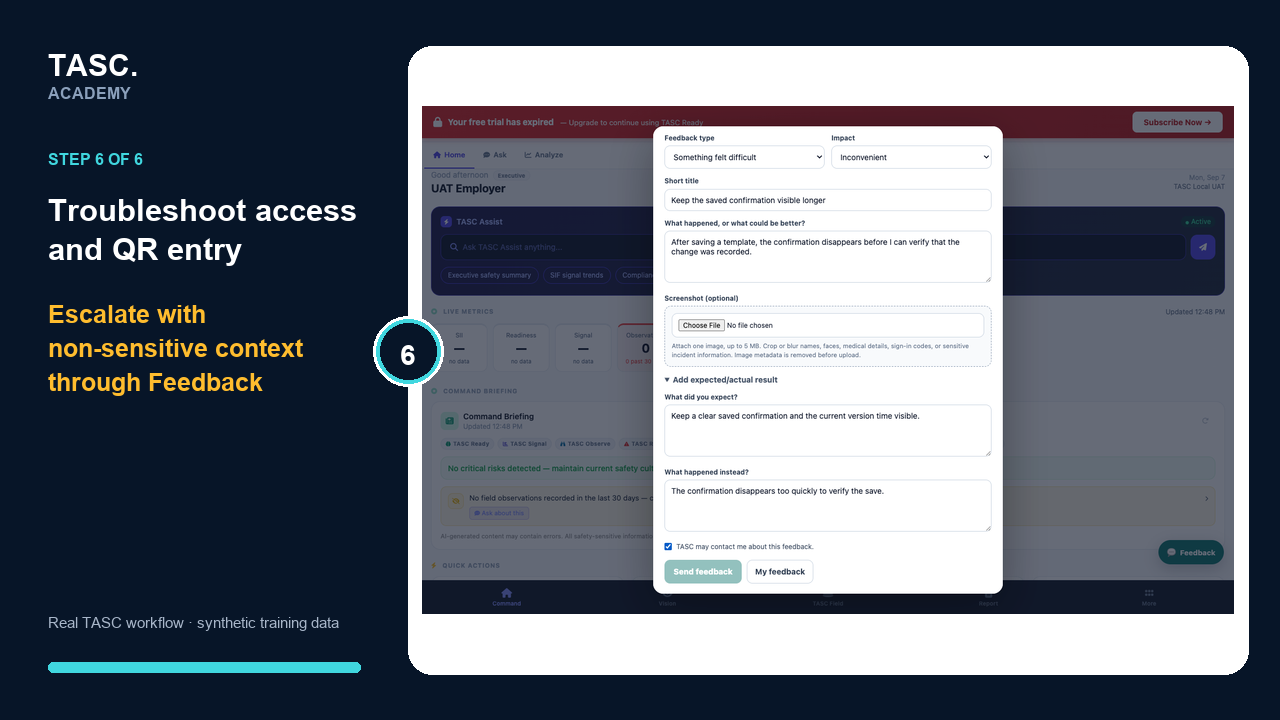 Step 6: Escalate with useful context
Check that it worked
- The person uses the intended entry route
- Access is no broader than before
- No duplicate person or asset record was created
- The expected workflow result is visible to the authorized reviewer
If something goes wrong
Invitation and sign-in loops continue.
Check the exact email, invitation state, account state and whether the person used the matching entry route.
A QR works for one person but not another.
Compare connected, signed-in and public participant states against the workflow’s supported access model.
Before you begin and supporting details
Before you begin
- Person type and intended role
- Entry route and time of failure
- Non-sensitive error text
- Expected site, workflow and outcome