Create, test and manage QR codes
Manage QR codes as governed workflow entry points rather than interchangeable links.
Watch first
Captioned walkthrough using the real TASC screen
Do the task
Follow these steps in order
Choose the workflow
Select Ready, Signal, Observe, Assets or another currently supported QR workflow before generating a code.
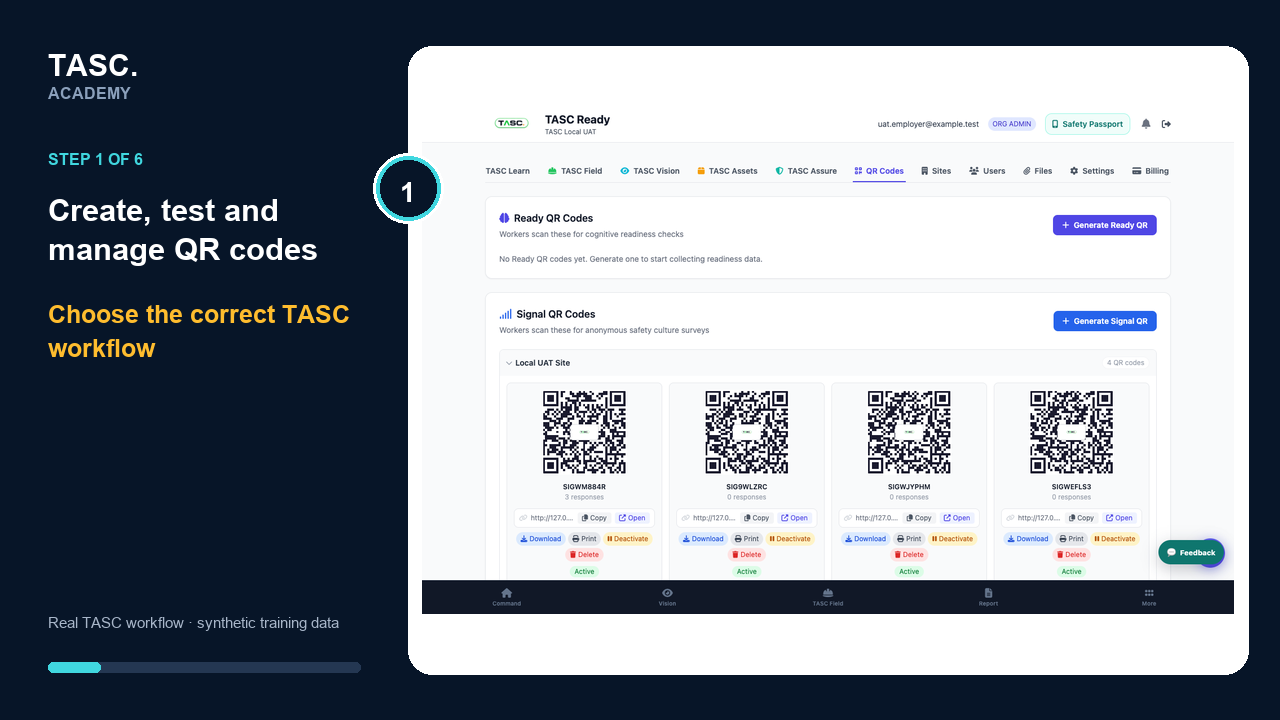 Step 1: Choose the workflow
Set the scope
Choose the organization, site, shift or asset context required by the workflow.
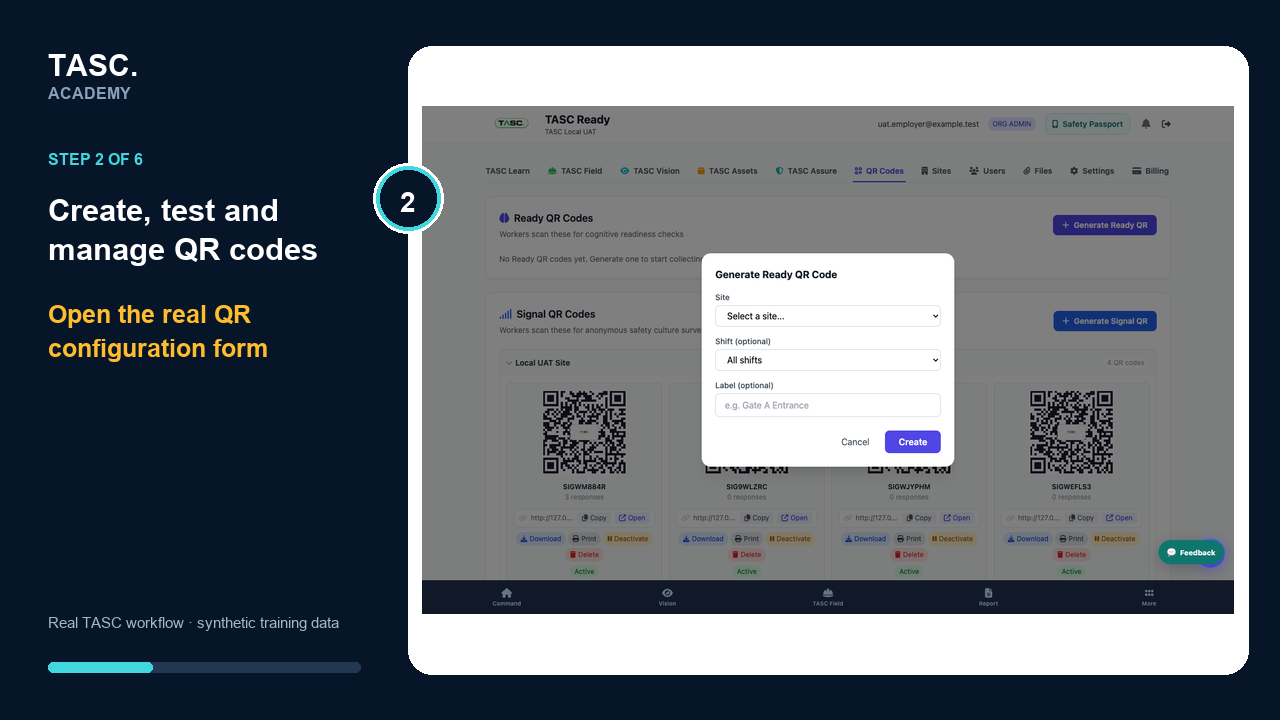 Step 2: Set the scope
Use a meaningful label
Name the code for its physical location and purpose so it can be monitored and retired correctly.
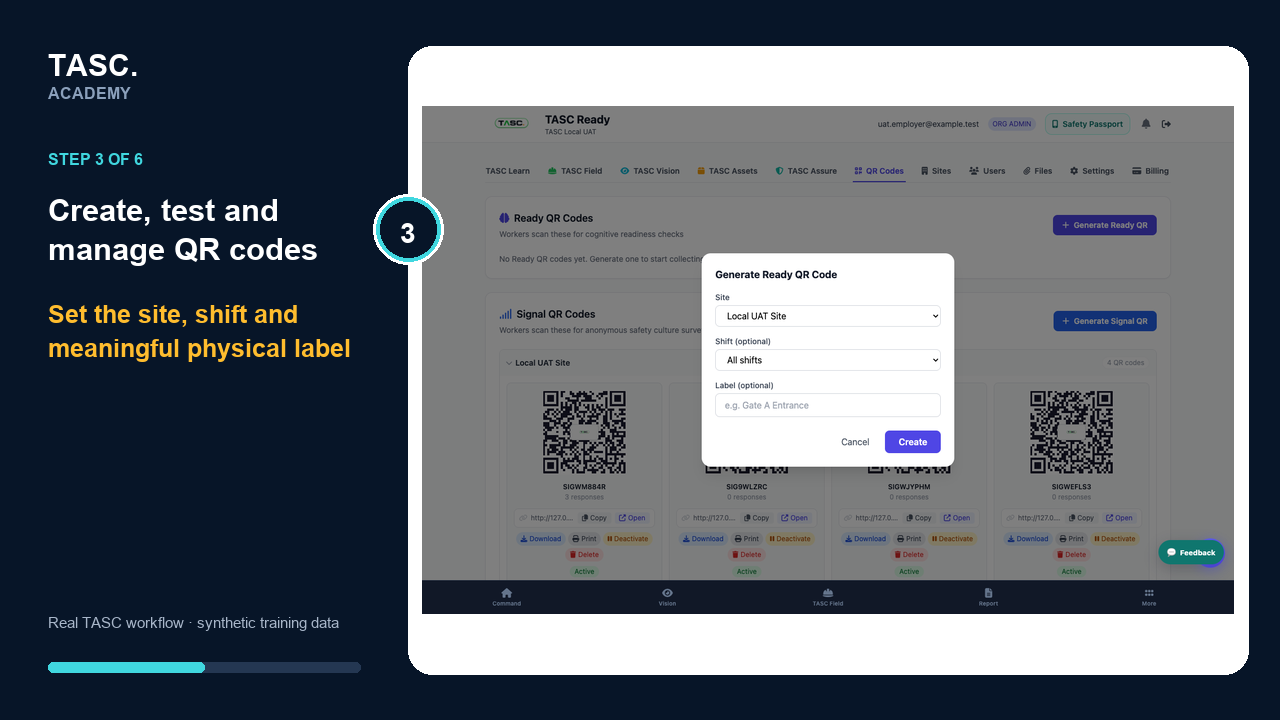 Step 3: Use a meaningful label
Test every user state
Test with an administrator, a connected worker and an unconnected participant where the workflow supports them.
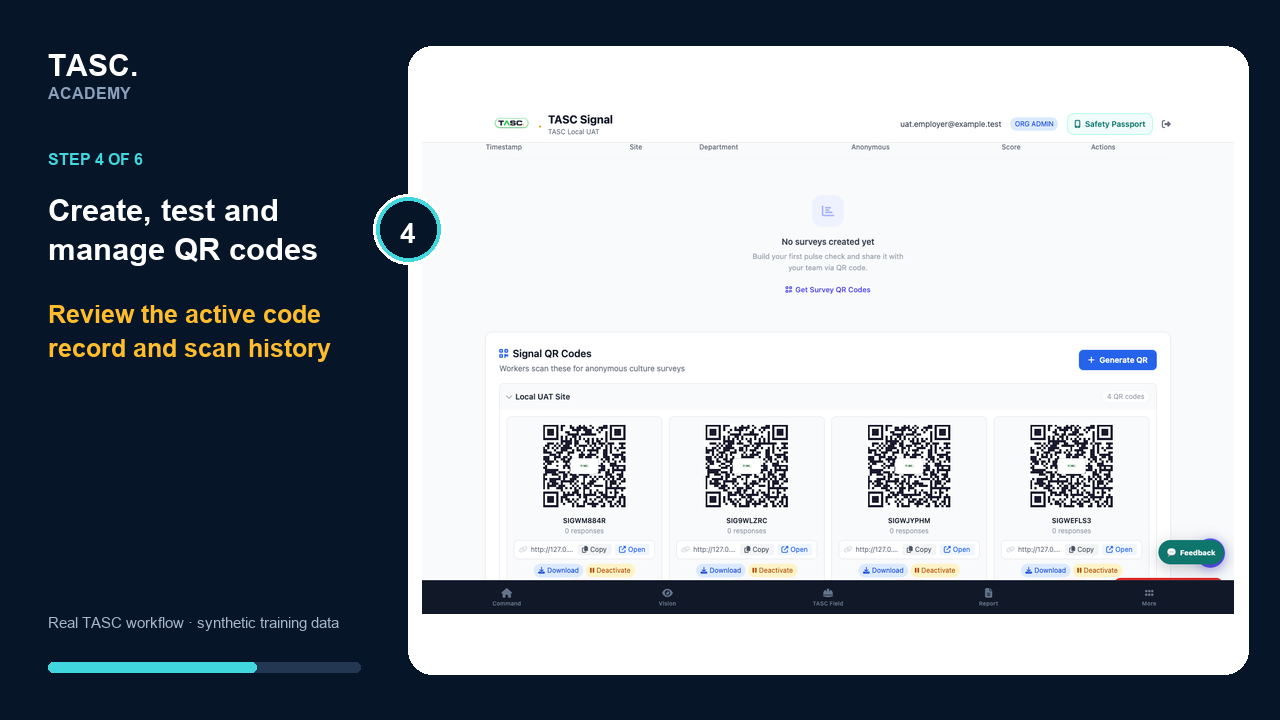 Step 4: Test every user state
Post the five answers
State who can scan, whether sign-in is required, what is collected, who can see it and where to get help.
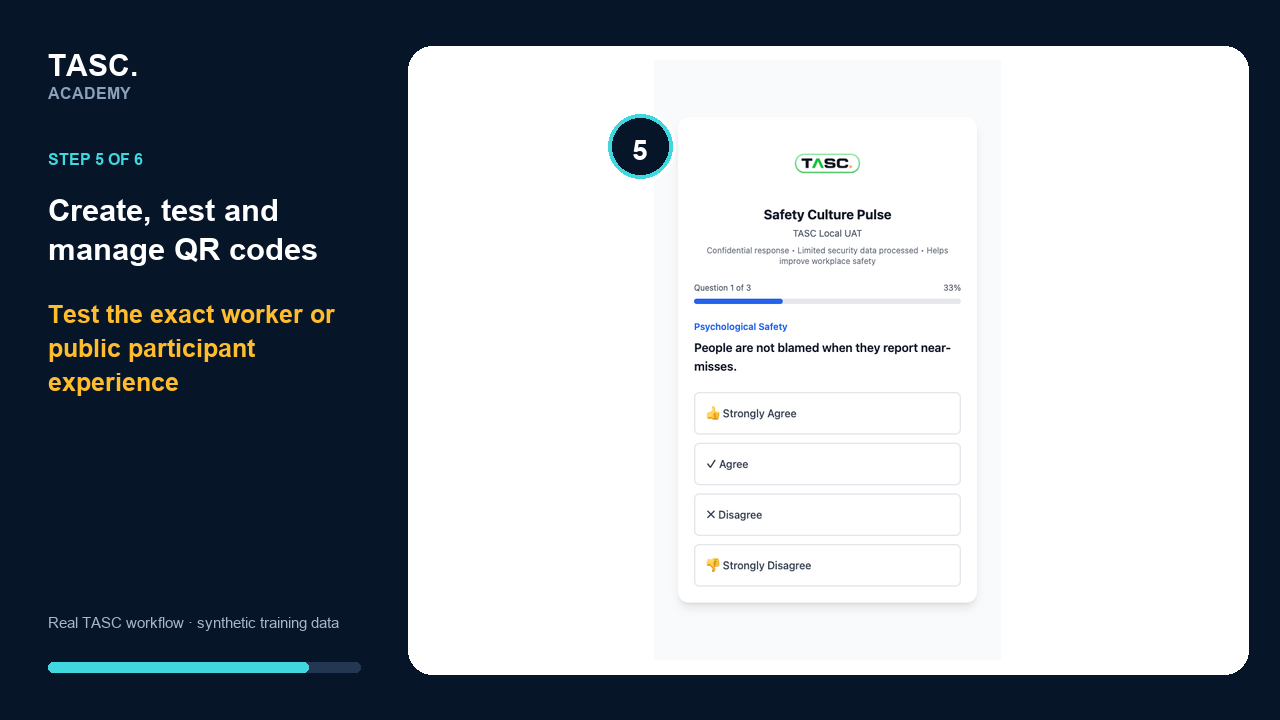 Step 5: Post the five answers
Monitor and retire
Review scans and reported issues, replace damaged signage and deactivate codes that are moved or no longer valid.
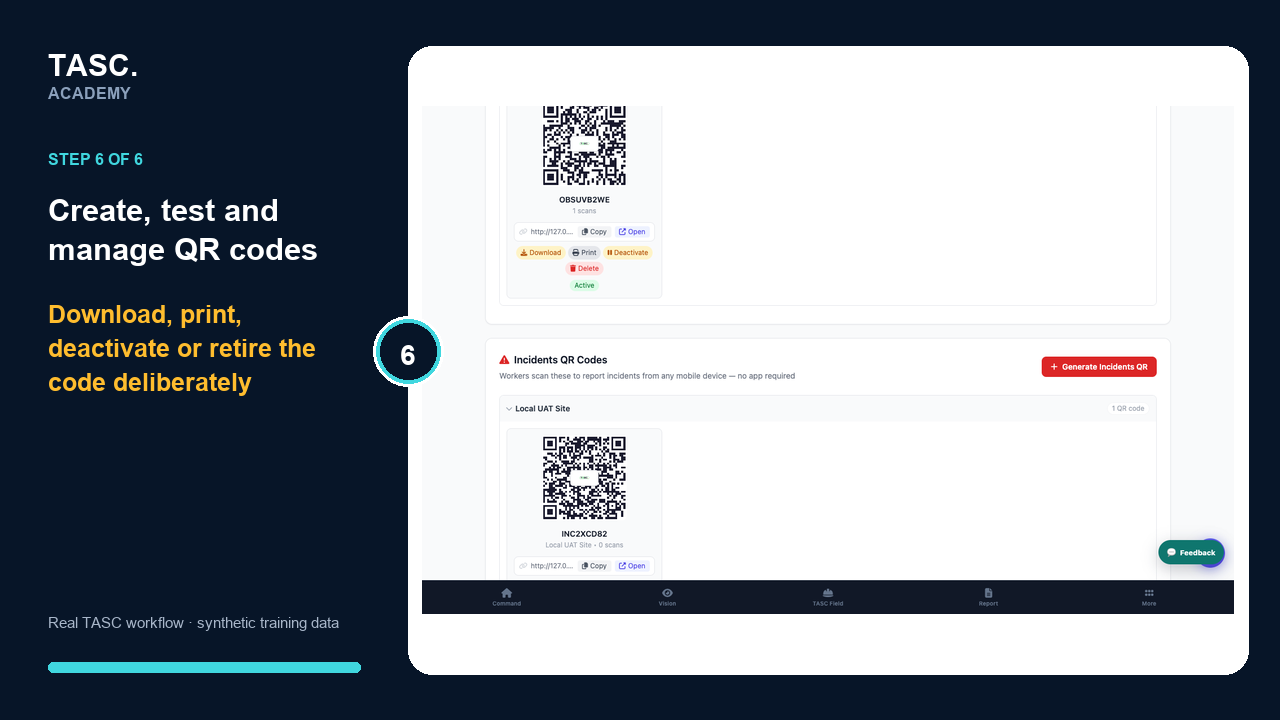 Step 6: Monitor and retire
Check that it worked
- Printed label and opening screen agree
- Scope is correct after scanning
- Expected user states succeed or fail safely
- The code can be deactivated and its owner knows how
If something goes wrong
The QR opens the wrong site, shift or asset.
Deactivate it, correct the scope, generate a replacement and remove every old physical copy.
An unconnected worker cannot continue.
Check whether the selected workflow allows public participation or requires a Passport connection.
Before you begin and supporting details
Before you begin
- The chosen workflow and participant type
- Organization, site, shift or asset scope
- A code owner and physical posting location
- Approved participant notice and help route