TASC Command: complete walkthrough
Use the operational home to see current risk signals, outstanding work and the fastest route into the task that needs attention.
Watch first
Captioned walkthrough using the real TASC screen
Do the task
Follow these steps in order
Orient yourself on Command
Confirm the organization and reporting context, then distinguish the Home, Ask and Analyze workspaces.
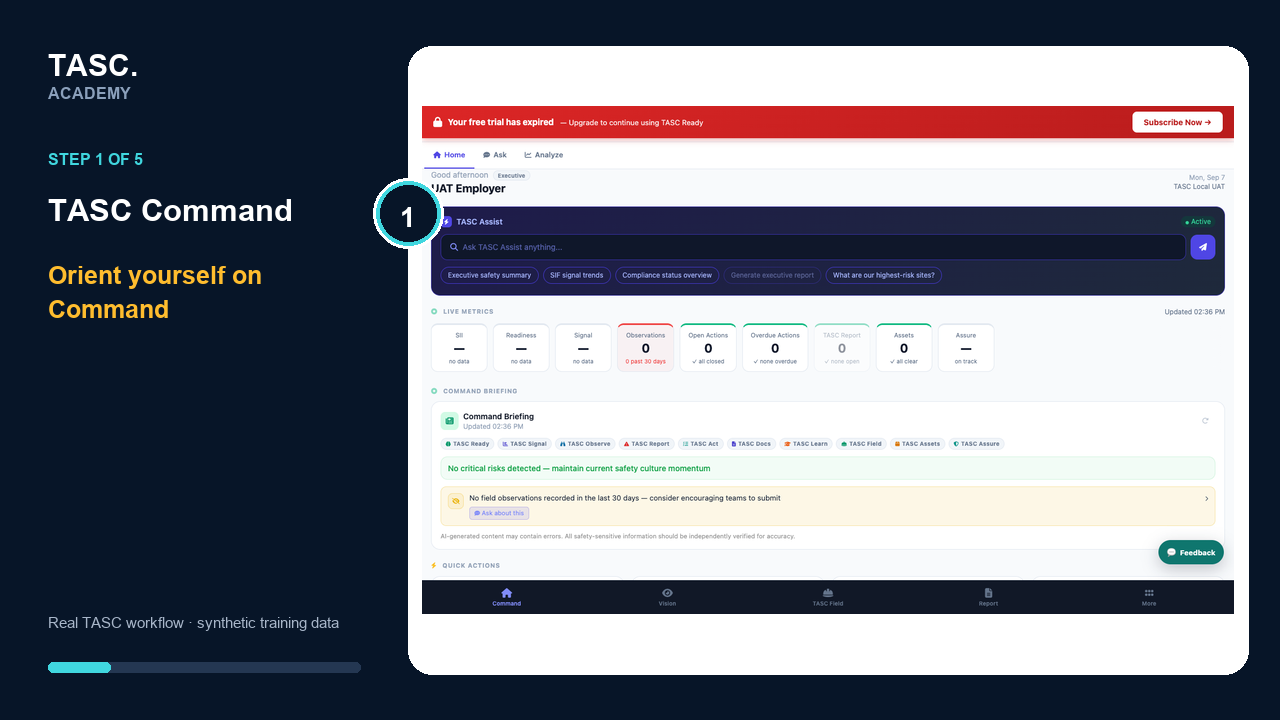 Step 1: Orient yourself on Command
Read the KPI strip
Use the live readiness, Signal, observations, actions, incidents, assets and assurance indicators as entry points—not as conclusions without reviewing source records.
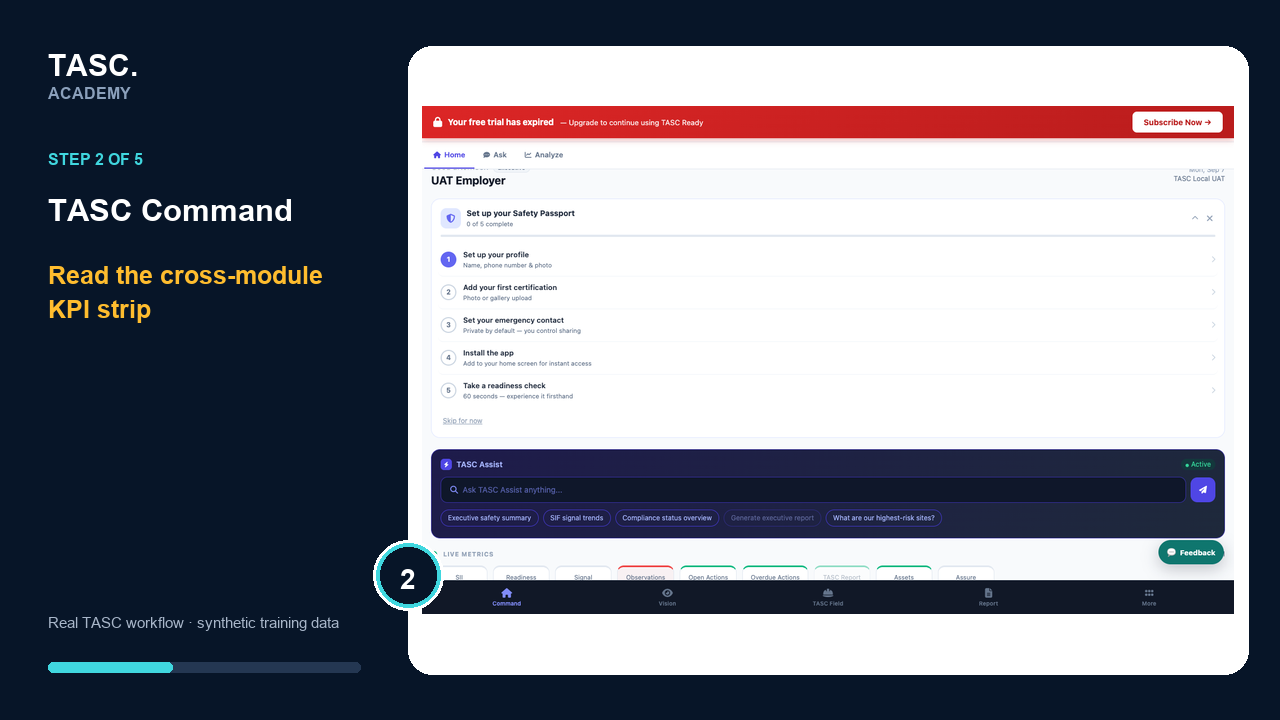 Step 2: Read the KPI strip
Review the operational briefing
Read the current briefing and open the supporting item before assigning or escalating work.
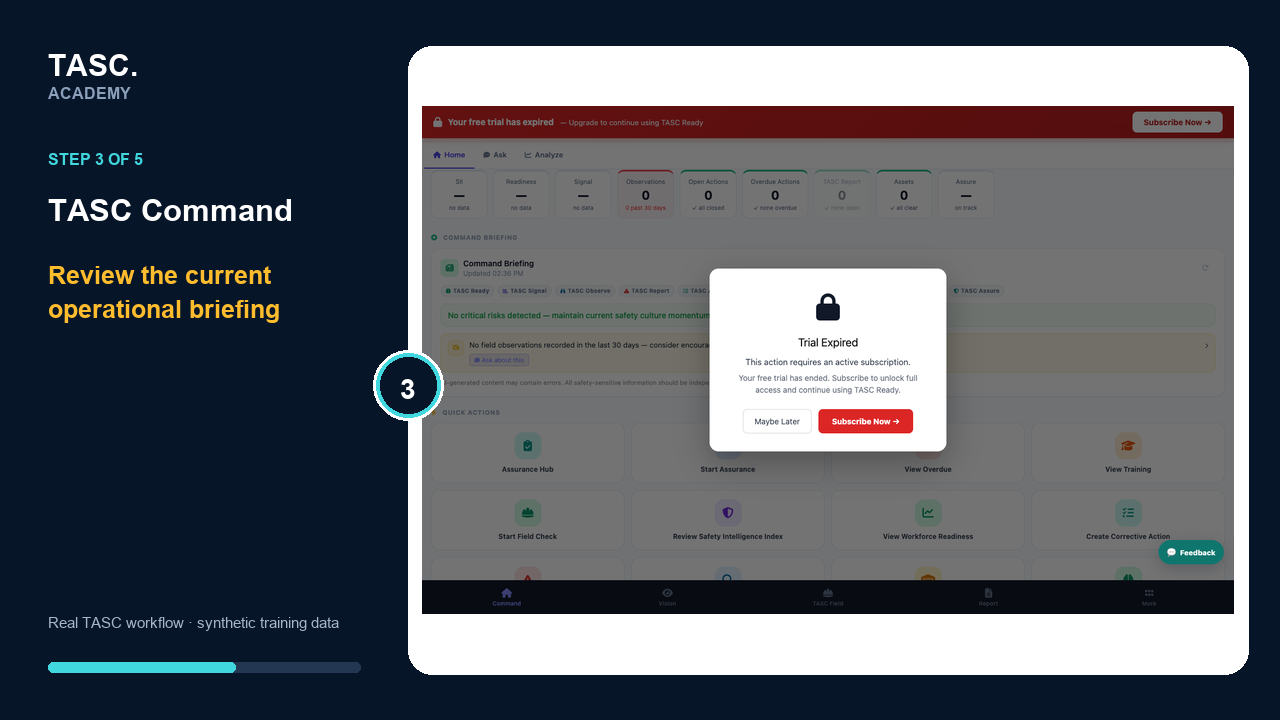 Step 3: Review the operational briefing
Launch the correct action
Use Quick Actions to start assurance, field checks, reporting, corrective action, documents, training or asset work in its owning module.
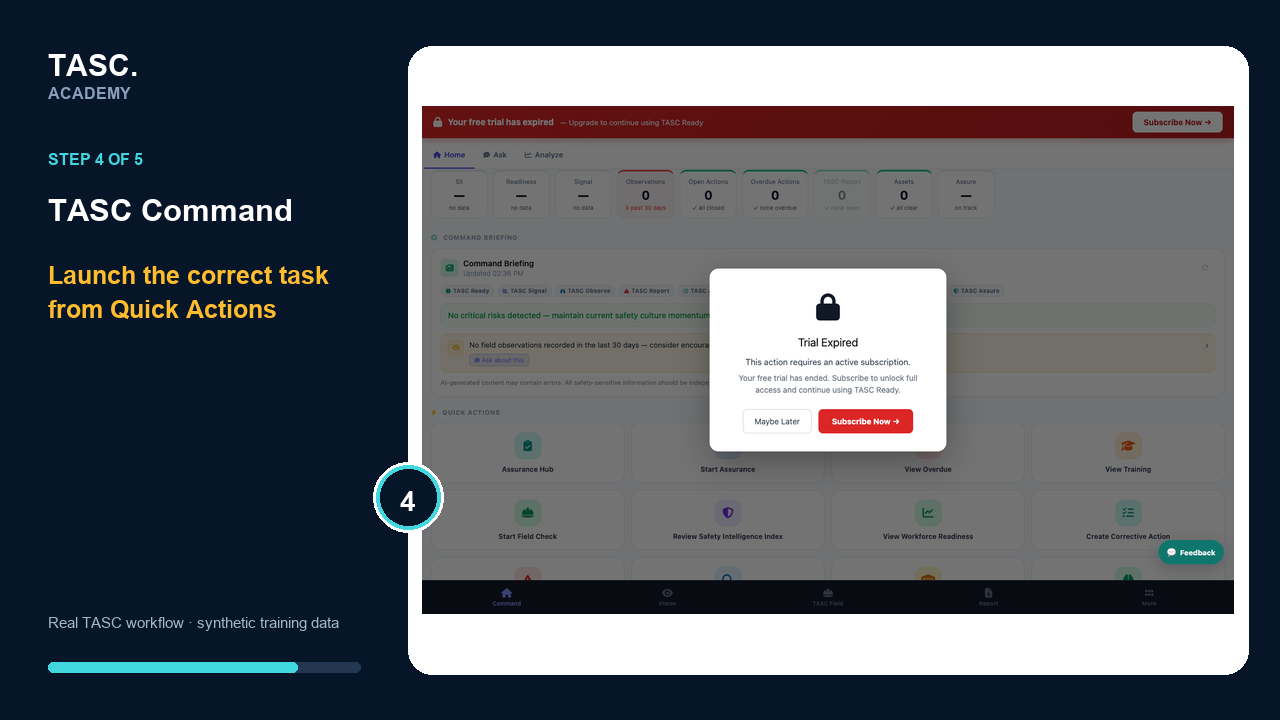 Step 4: Launch the correct action
Verify the source record
Open the relevant module or full dashboard and confirm the scope, status and evidence behind the Command summary.
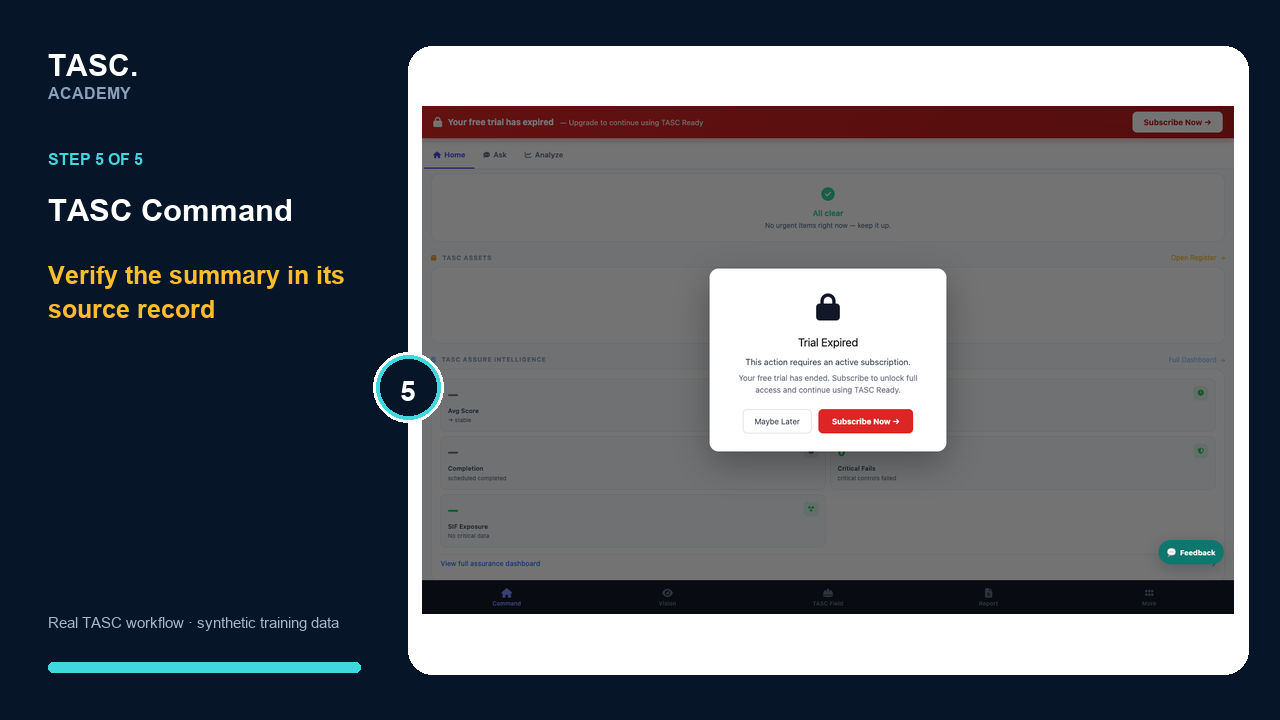 Step 5: Verify the source record
Check that it worked
- The organization context is correct
- A KPI opens the intended source view
- Quick Actions route to the owning module
- Decisions cite the underlying record
If something goes wrong
A KPI says no data.
Check the period, site, module access and source records before treating the absence as a safe result.
Before you begin and supporting details
Before you begin
- Organization-administrator or authorized supervisor access
- The correct organization and site context
- A synthetic test case before changing live operational information