Set up your organization and first site
Create the operating structure used by users, workers, QR codes, forms and reporting.
Watch first
Captioned walkthrough using the real TASC screen
Do the task
Follow these steps in order
Confirm administrator access
Sign in through the employer entry and confirm that your account has organization-administrator permissions.
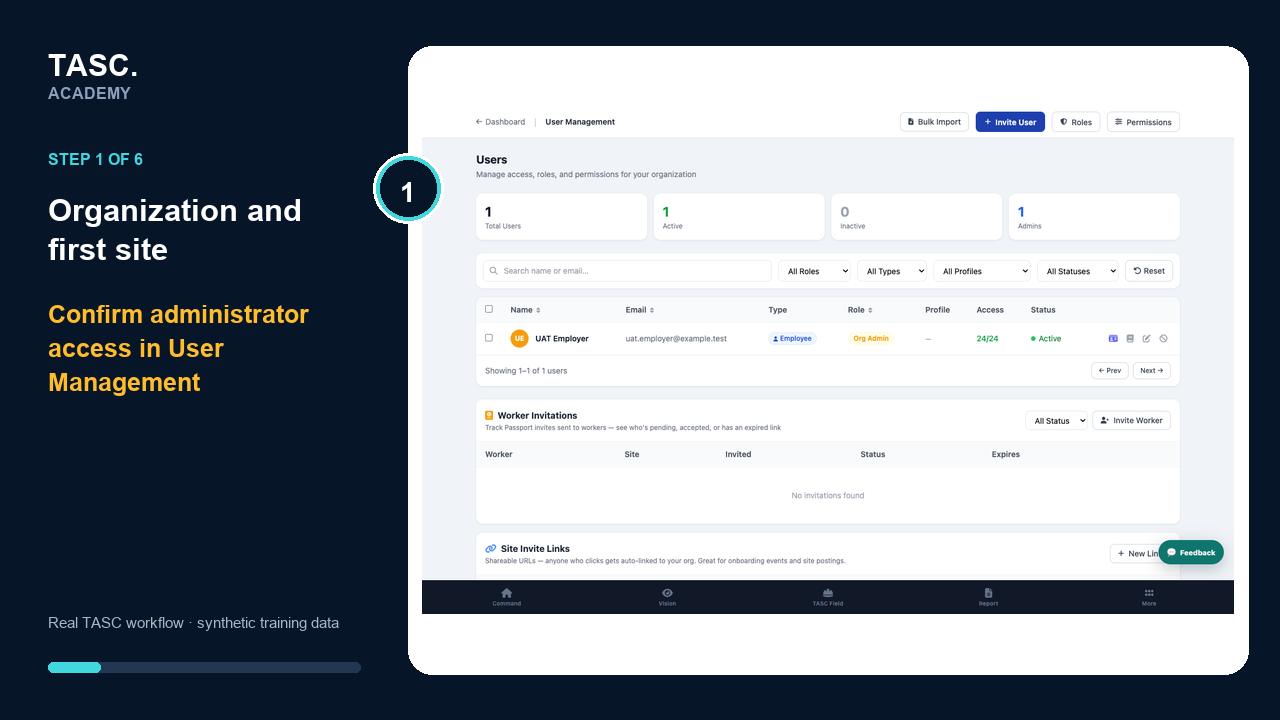 Step 1: Confirm administrator access
Complete the organization identity
Review company name, industry, display name, logo and accent colour before worker-facing material is produced.
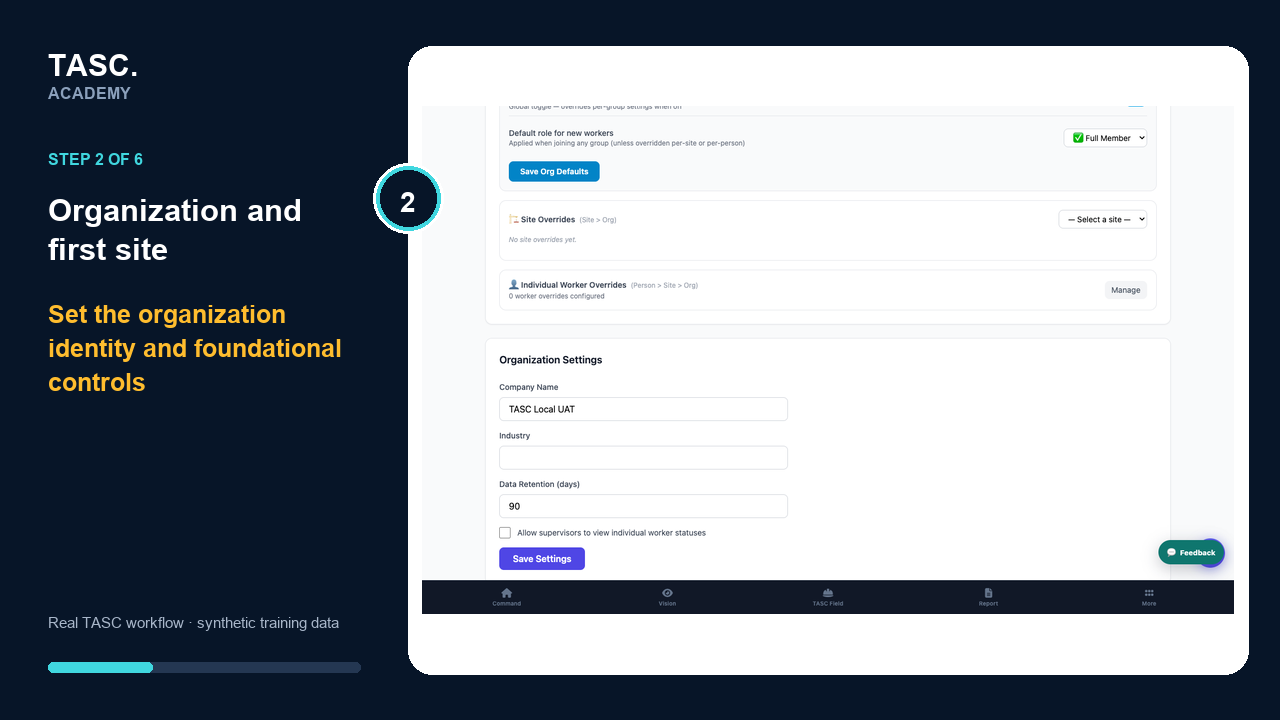 Step 2: Complete the organization identity
Create the first site
Add the site name, location and time-zone information needed by site-scoped workflows.
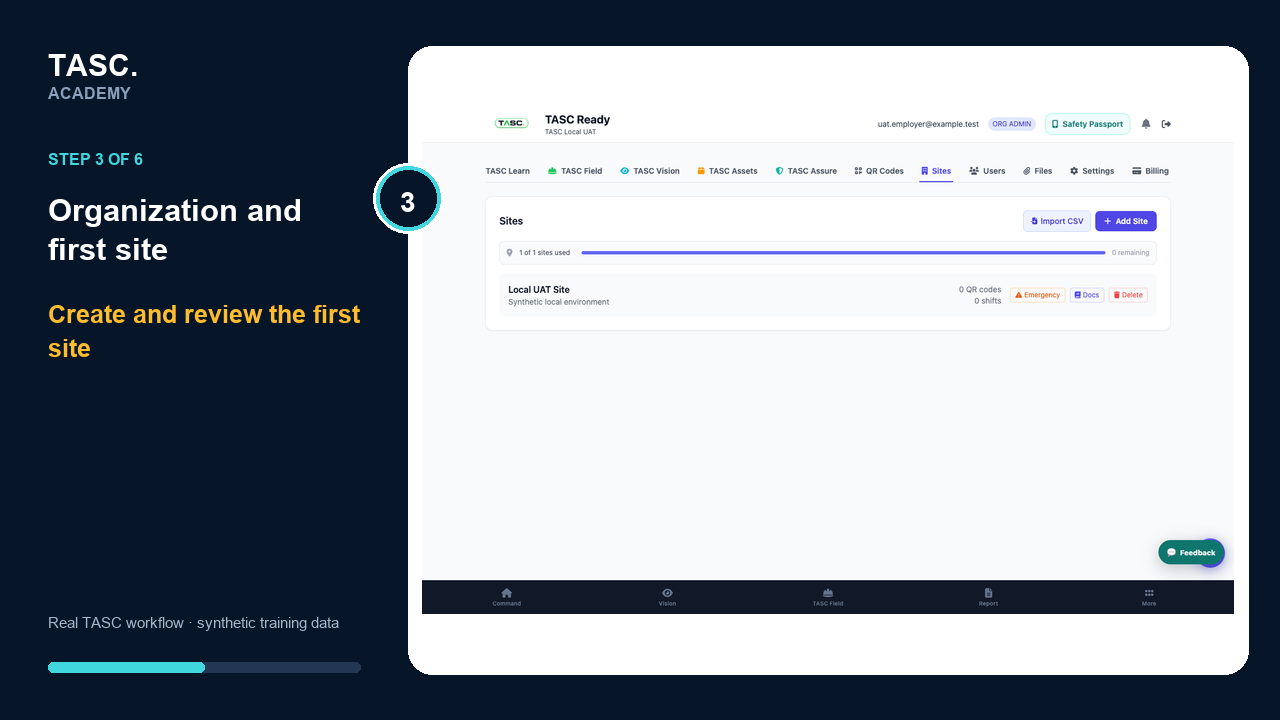 Step 3: Create the first site
Add departments and crews
Use a structure that staff will recognize and that can be maintained consistently.
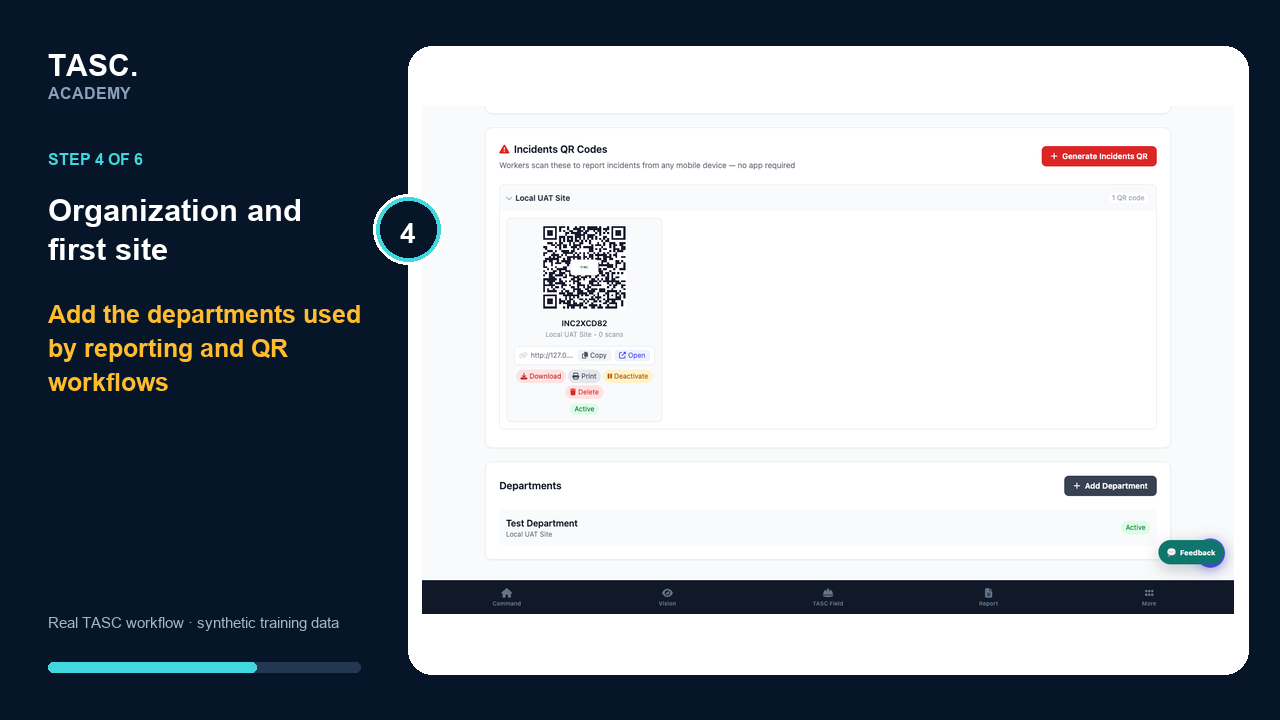 Step 4: Add departments and crews
Configure shifts
Review the default shifts and add or rename them to match the site’s actual operating pattern.
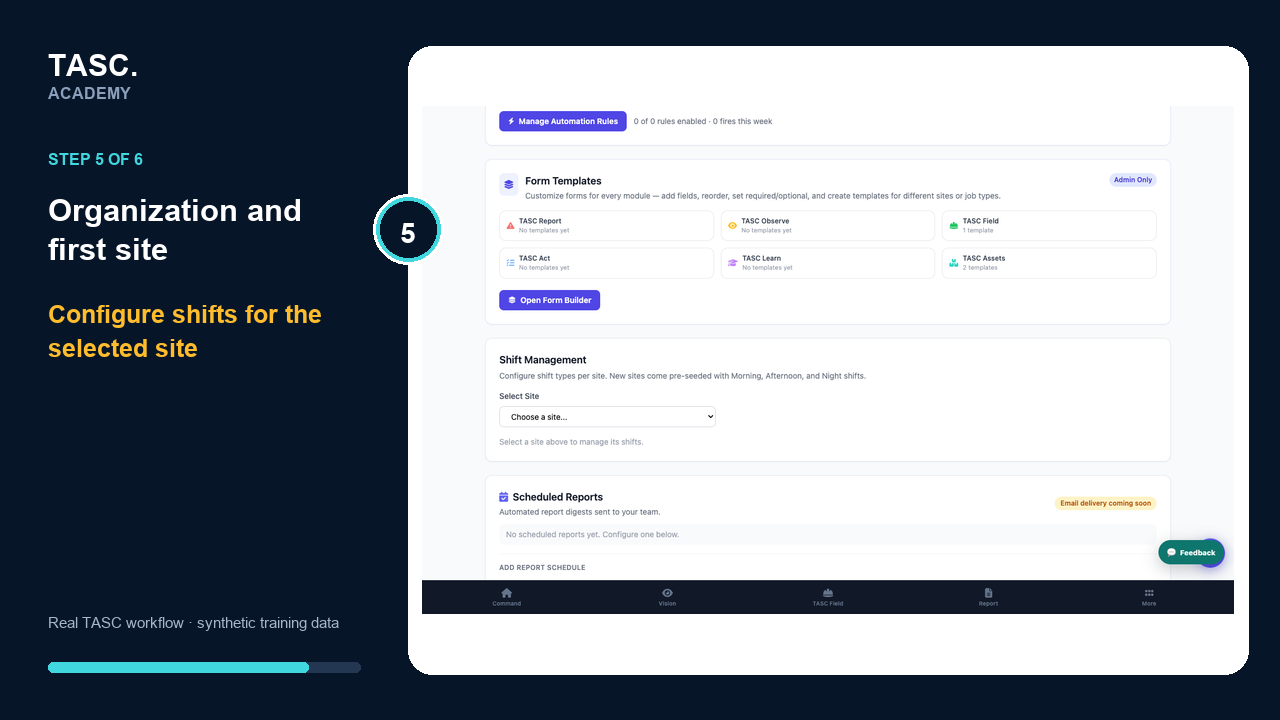 Step 5: Configure shifts
Review foundational settings
Confirm retention, individual-status visibility and active modules before inviting people.
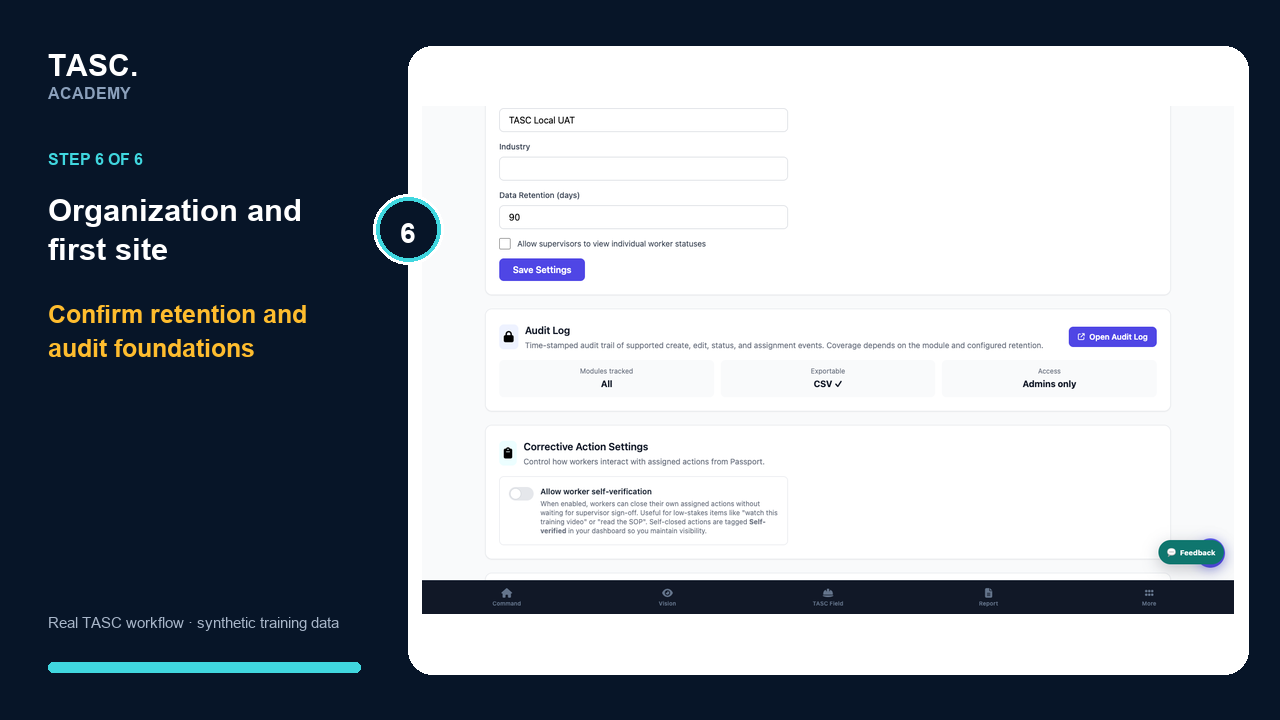 Step 6: Review foundational settings
Check that it worked
- Company name and industry display correctly
- The first site has the correct location and time zone
- Departments, crews and shifts match the operating model
- Settings remain correct after signing out and back in
If something goes wrong
A user cannot find the expected site.
Confirm the site is active and that the user assignment includes that site.
Reports group people under inconsistent names.
Pause invitations and standardize site, department, crew and shift naming before adding more records.
Before you begin and supporting details
Before you begin
- Organization-administrator access
- Approved company display name, industry and brand assets
- Agreed site, department, crew and shift names
- Approved retention period and individual-status visibility decision