All lessons
Dashboard OverviewVideo + step screenshots
Dashboard Overview: complete walkthrough
Filter and review cross-module activity, risk intelligence, engagement, actions, documents and submissions from one reporting surface.
10 minutes5 stepsCore
Watch first
Captioned walkthrough using the real TASC screen
Do the task
Follow these steps in order
0 of 50%
Set the reporting scope
Choose the period and available site, department or shift filters before interpreting any total or trend.
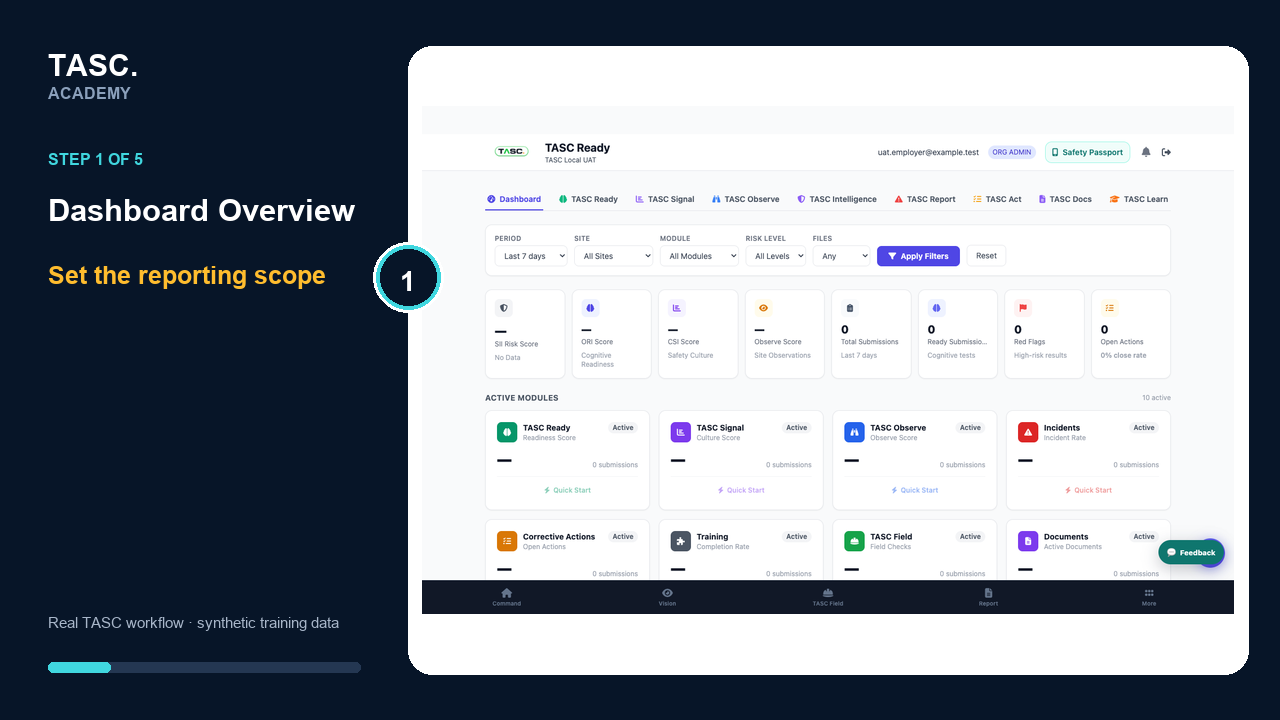 Step 1: Set the reporting scope
Review active-module status
Use each module card to understand availability and open its quick-start path when configuration is incomplete.
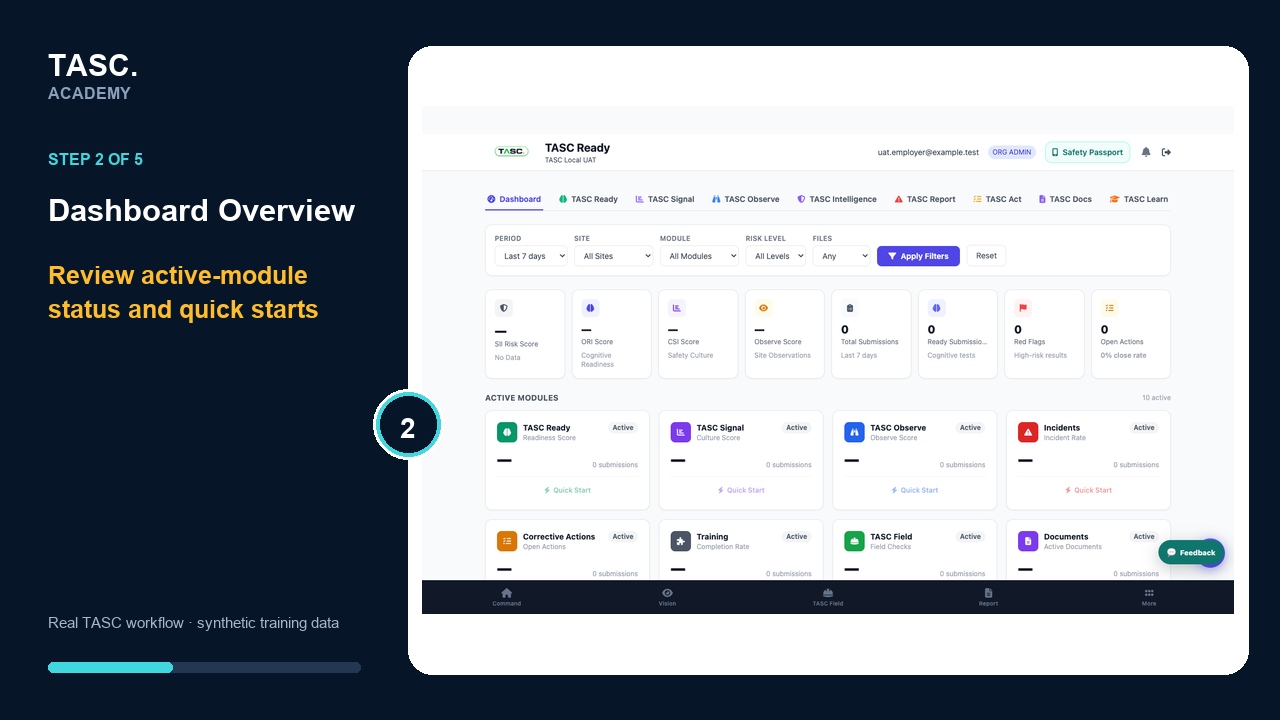 Step 2: Review active-module status
Interpret risk and engagement
Read Risk Intelligence and Engagement together and open the supporting records before acting.
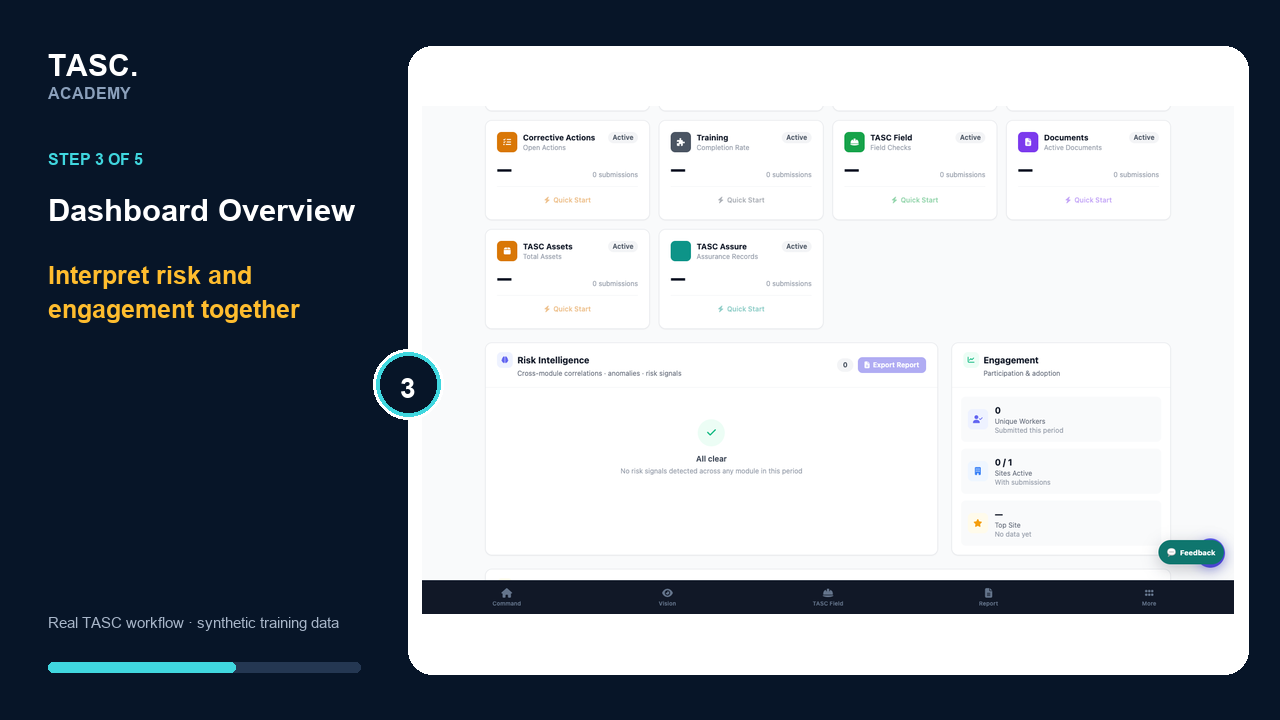 Step 3: Interpret risk and engagement
Review actions and documents
Check open corrective work and controlled-document status for the selected scope.
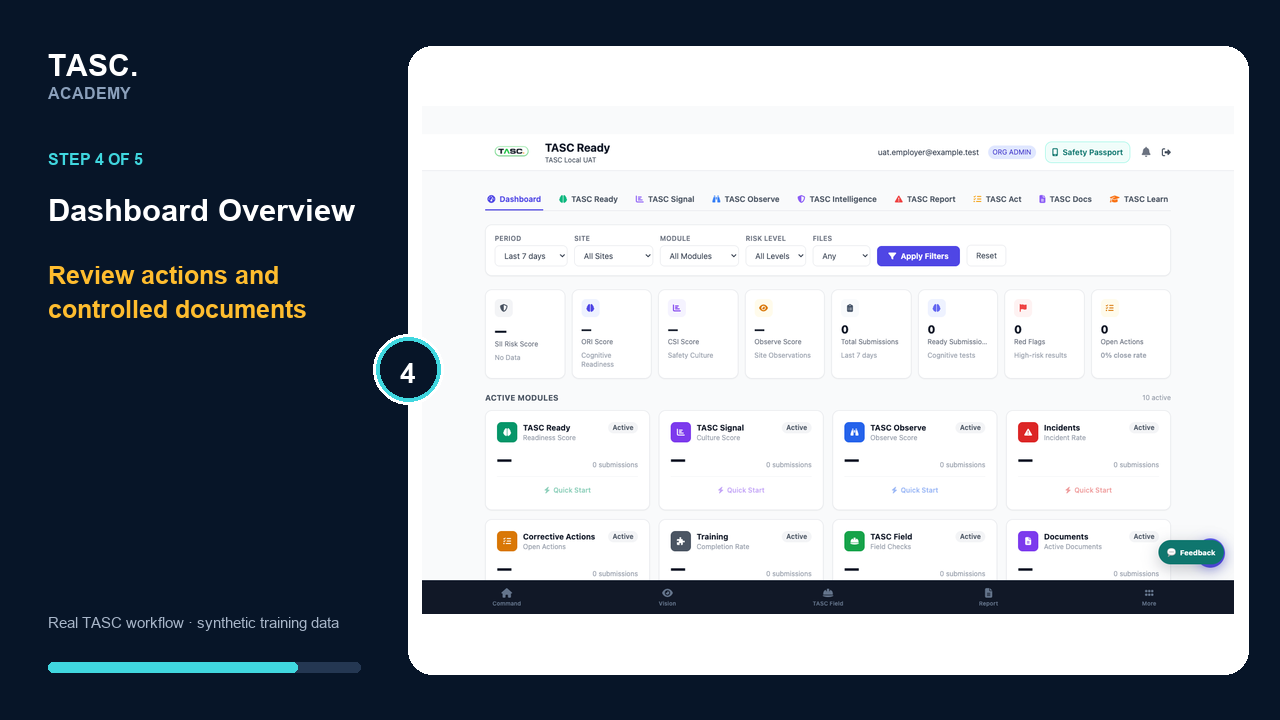 Step 4: Review actions and documents
Inspect submissions or export
Use All Submissions and the supported export only after confirming filters and access.
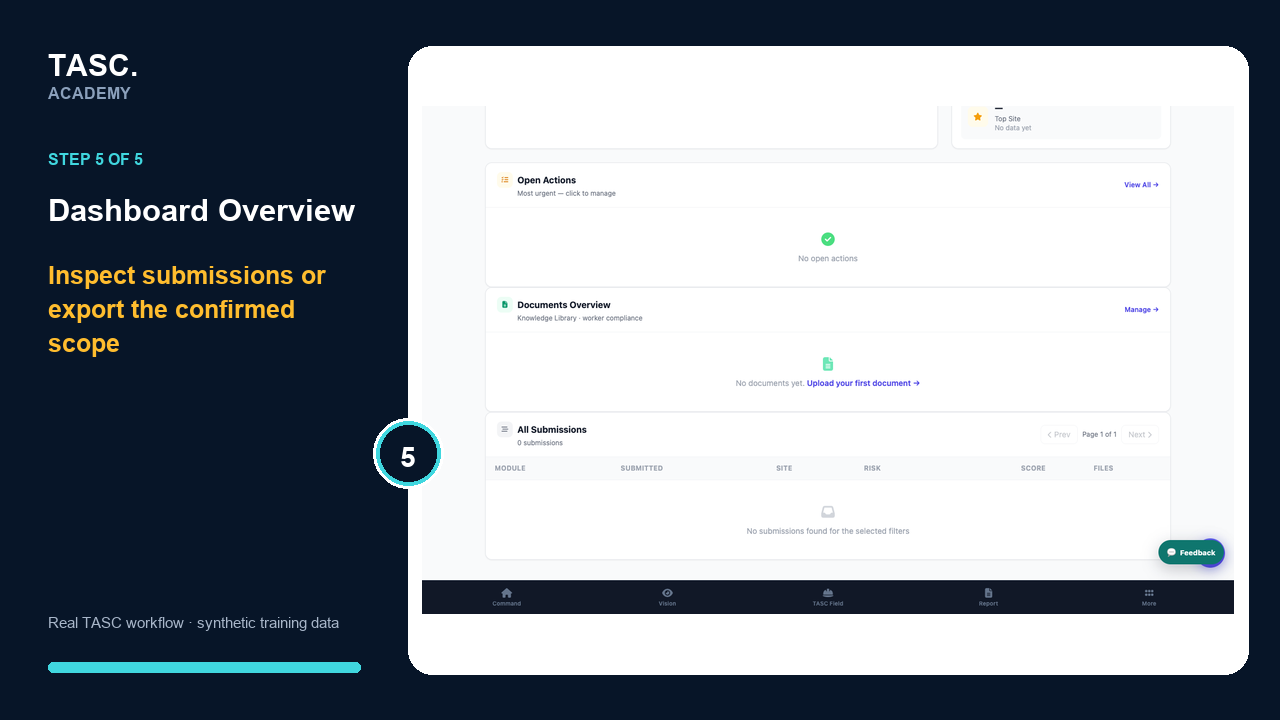 Step 5: Inspect submissions or export
Check that it worked
- Filters visibly match the intended scope
- Totals reconcile to source-module records
- Open actions are not hidden by a filter
- Exports use the same scope shown on screen
If something goes wrong
Dashboard and module totals differ.
Align date, site, department, shift and record-status filters, then refresh both views.
Before you begin and supporting details
Before you begin
- Organization-administrator or authorized supervisor access
- The correct organization and site context
- A synthetic test case before changing live operational information
Find it in TASC
Employer PortalDashboard Overview