Invite workers and connect Safety Passports
Add a worker to the TASC Learn roster, connect or request their Safety Passport, and use the supervisor scan for live requirement checks.
Watch first
Captioned walkthrough using the real TASC screen
Do the task
Follow these steps in order
Open TASC Learn Worker Roster
Use Worker Roster—not User Management—for people who need workforce, training and Passport records without employer-portal access.
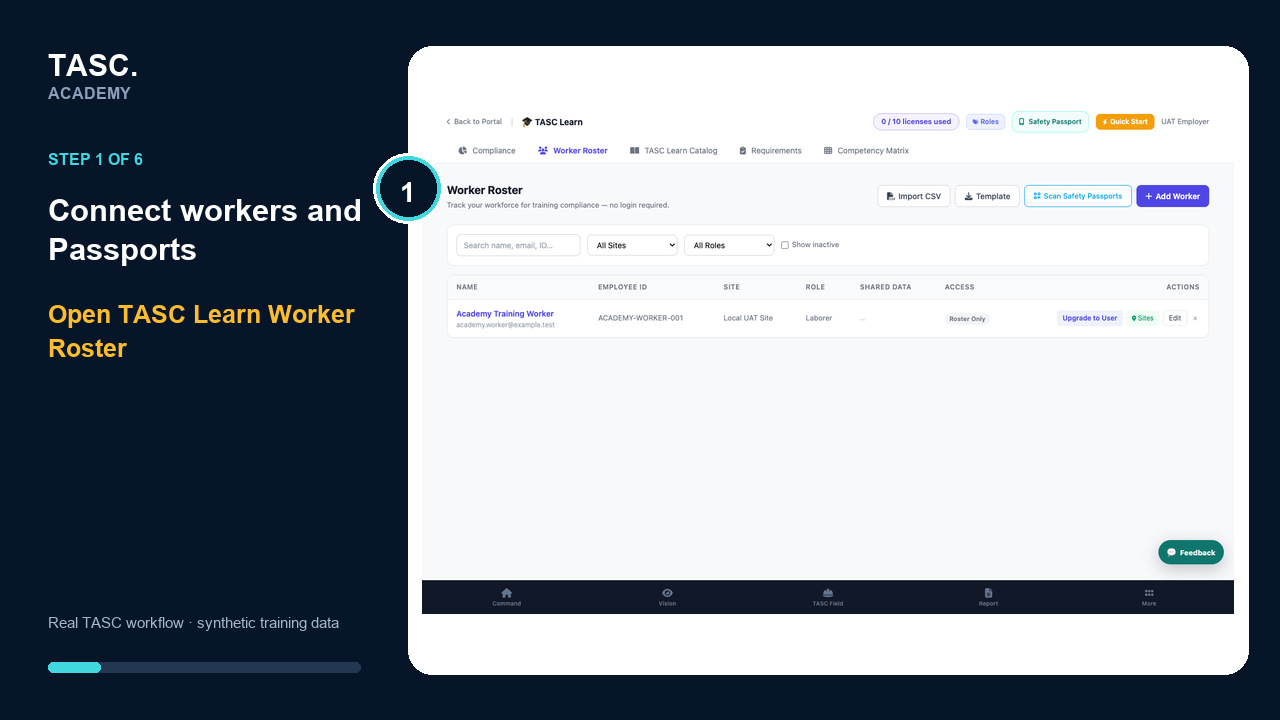 Step 1: Open TASC Learn Worker Roster
Add the roster worker
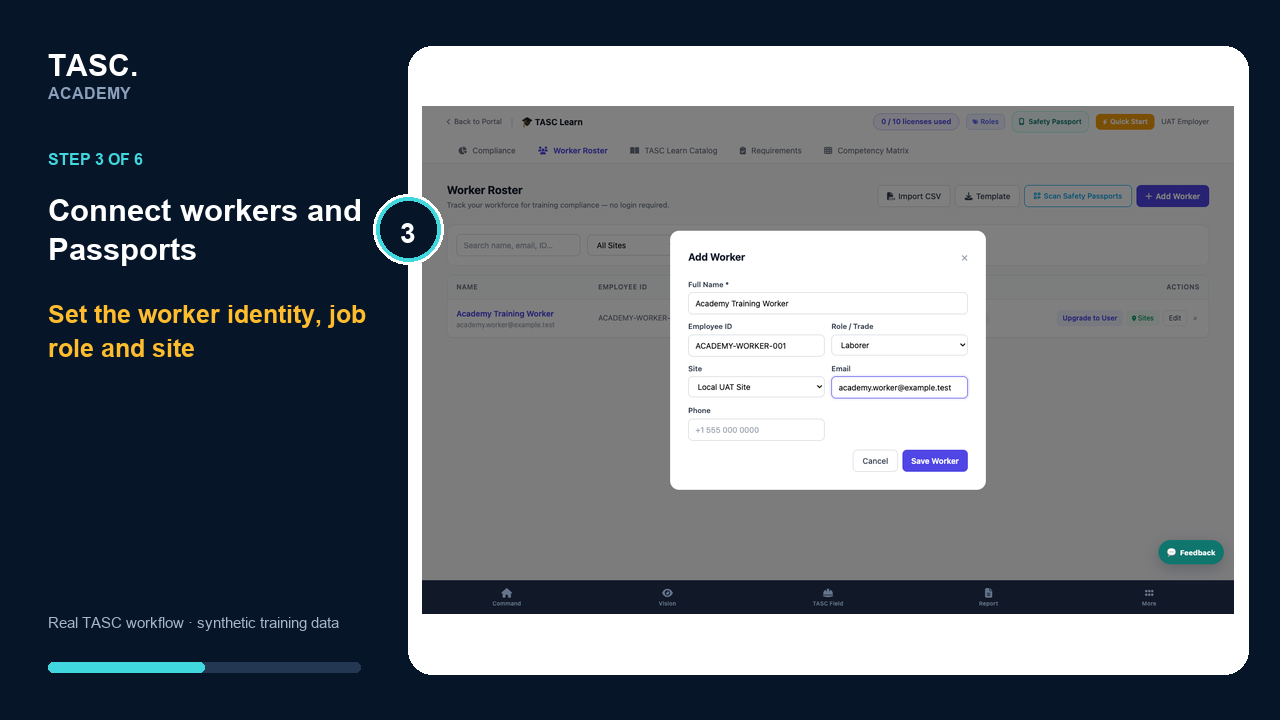
Open Add Worker and enter the worker’s name, employee ID, job role, site and supported contact details.
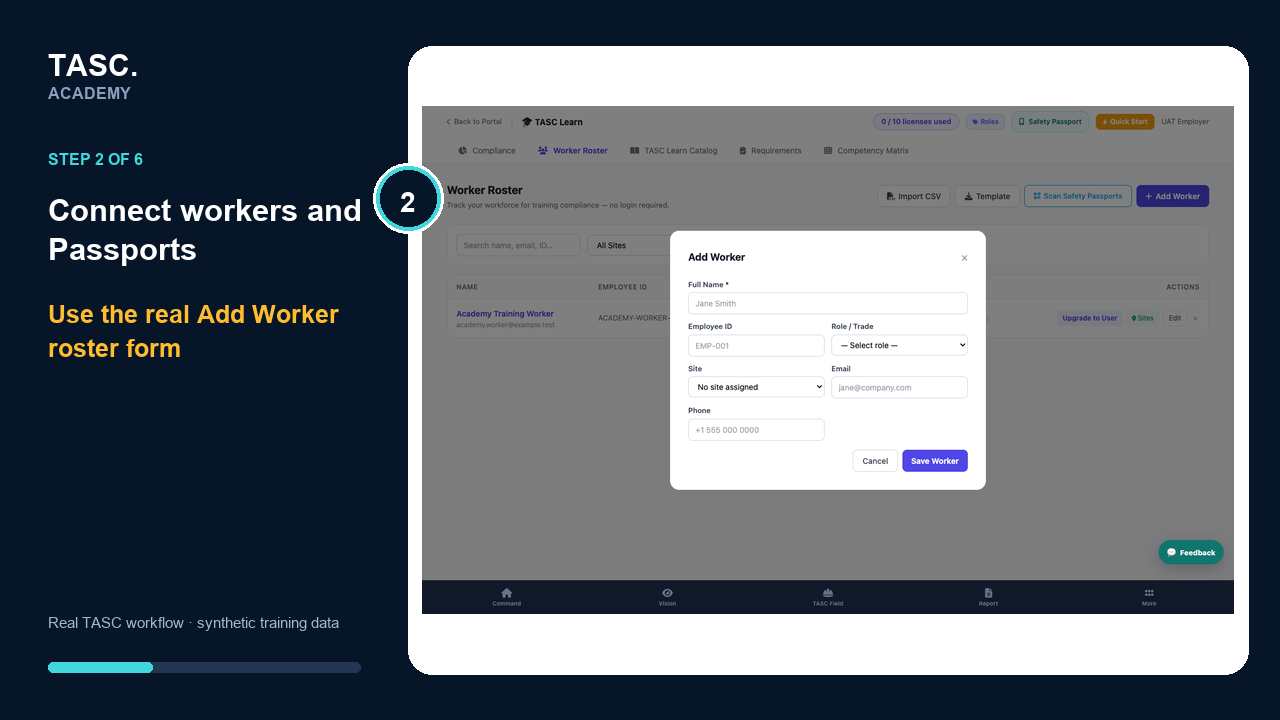 Step 2: Add the roster worker
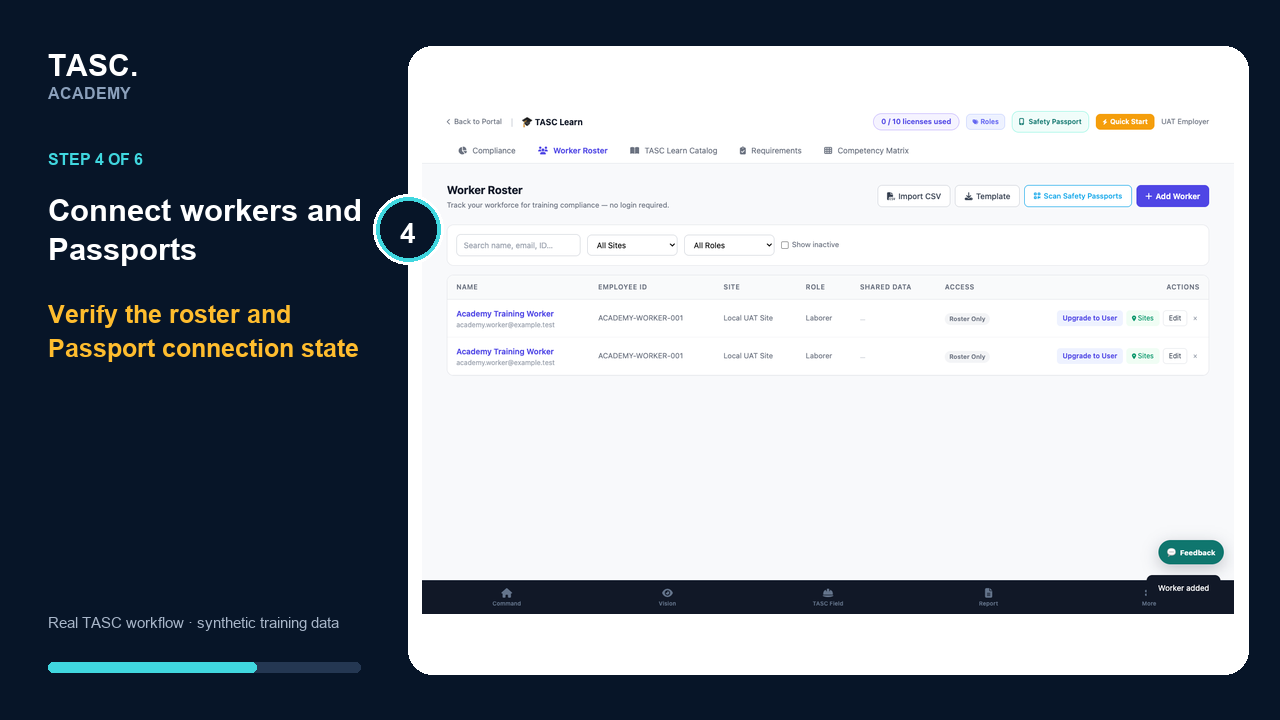
Verify the saved roster state
Confirm the worker appears once, at the correct site and role, with a truthful Roster Only or Passport Shared state.
 Step 3: Verify the saved roster state
Request or connect the Passport
Use Request Passport for a roster-only worker, or have the worker accept the supported connection from their existing Passport.
 Step 4: Request or connect the Passport
Scan Safety Passports at the site
Open Scan Safety Passports and use the site-scoped supervisor link to scan the worker’s Passport QR.
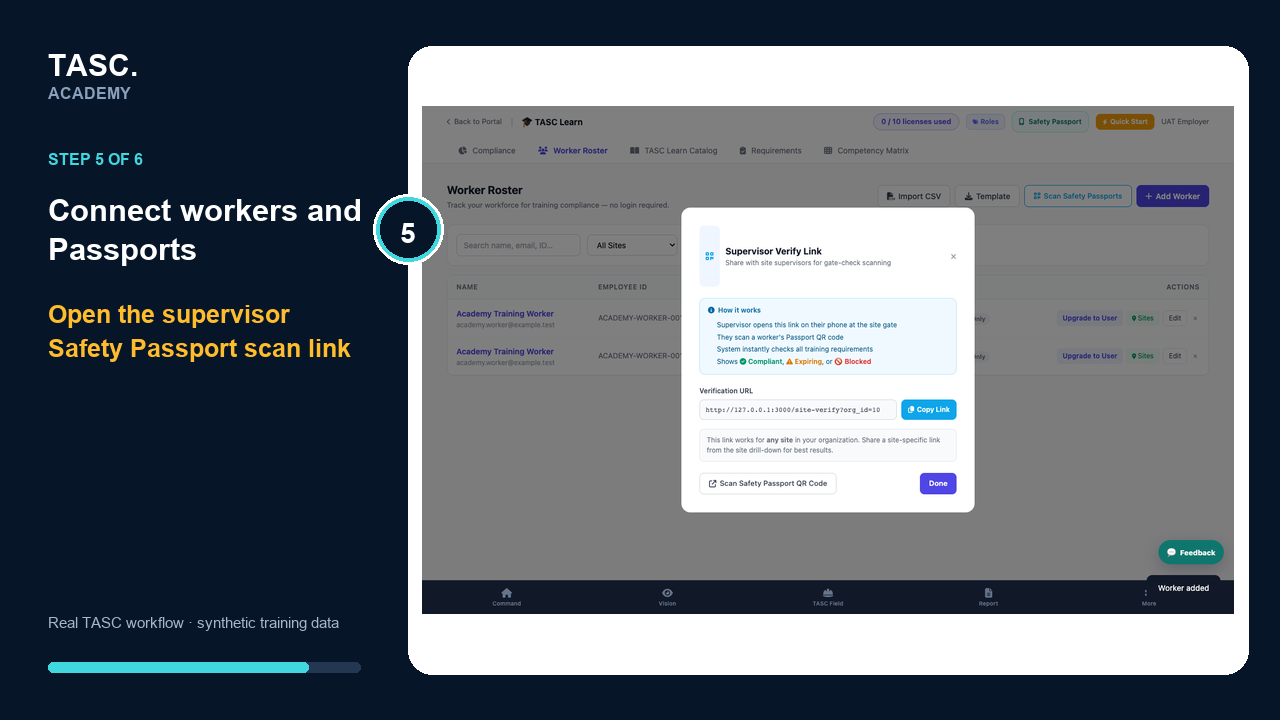 Step 5: Scan Safety Passports at the site
Review live requirement status
Check the worker against current site requirements and follow the Compliant, Expiring or Blocked result without turning the worker into a licensed user.
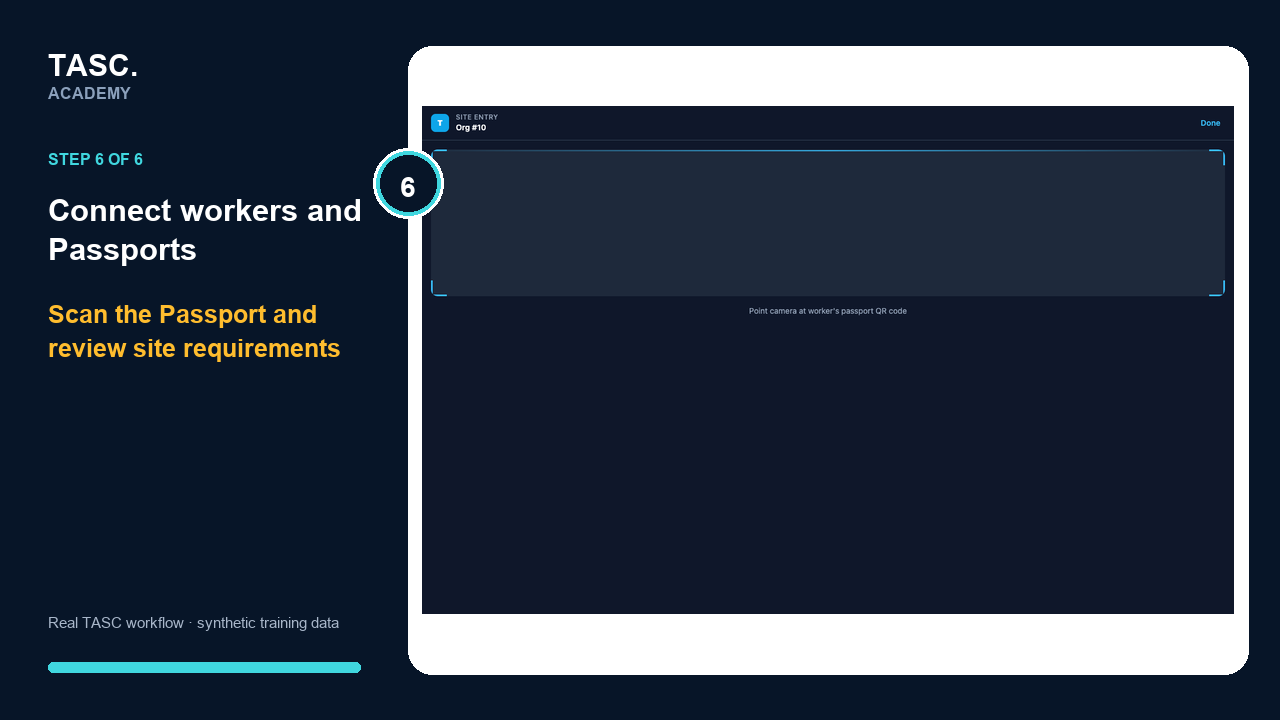 Step 6: Review live requirement status
Check that it worked
- The worker appears once in Worker Roster
- Site and job role are correct
- Roster Only or Passport Shared is truthful
- The supervisor scan returns the expected site-requirement status
- The worker does not consume organization-user capacity
If something goes wrong
The worker already has a Passport.
Ask them to sign in with the existing account and accept the new organization connection.
The invitation has expired.
Confirm the email and site, then use the supported resend or replacement action. Do not create a duplicate worker.
Before you begin and supporting details
Before you begin
- Worker name and durable employee identifier
- The correct job role and site
- A supported contact route when requesting a Passport
- The site requirements used by the supervisor scan