Using a TASC QR code safely
Understand the workflow, identity expectations and information handling before you submit.
Watch first
Captioned walkthrough using the real TASC screen
Do the task
Follow these steps in order
Confirm the location and workflow
Read the printed label and the opening screen to confirm the QR code belongs to the expected site and task.
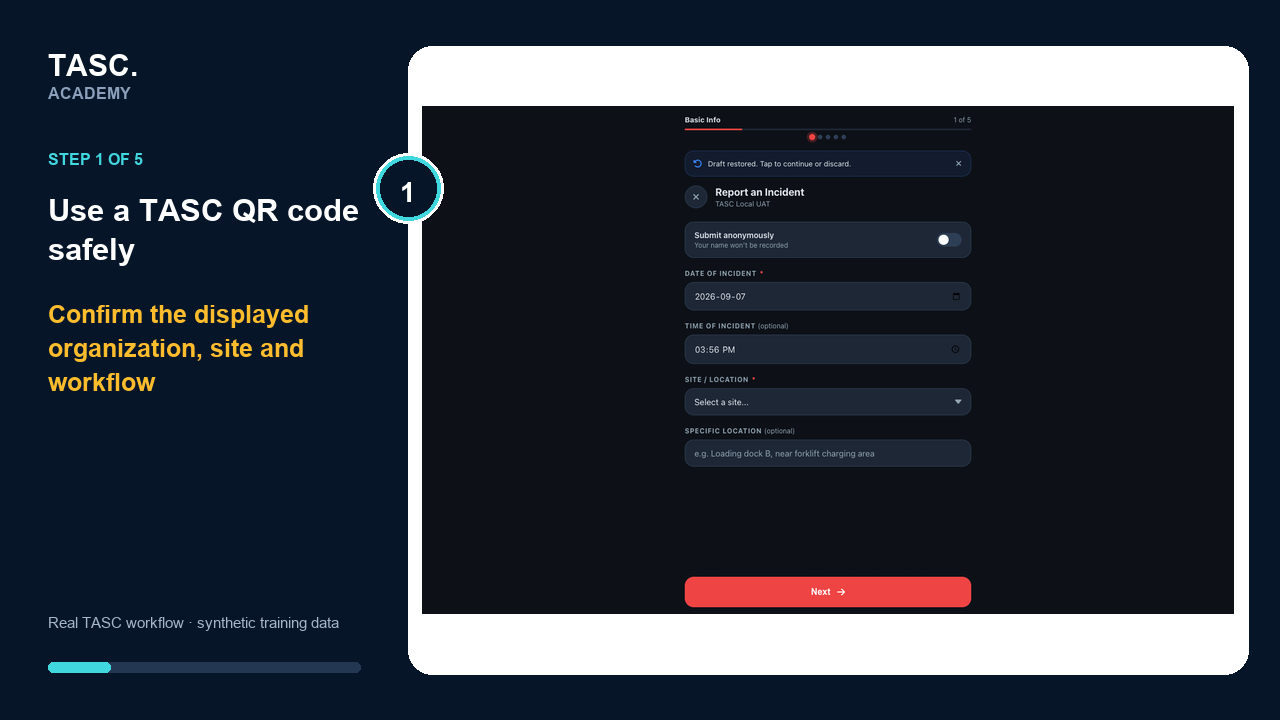 Step 1: Confirm the location and workflow
Check the identity requirement
Some QR workflows allow public participation; others require sign-in or offer different behavior for connected workers.
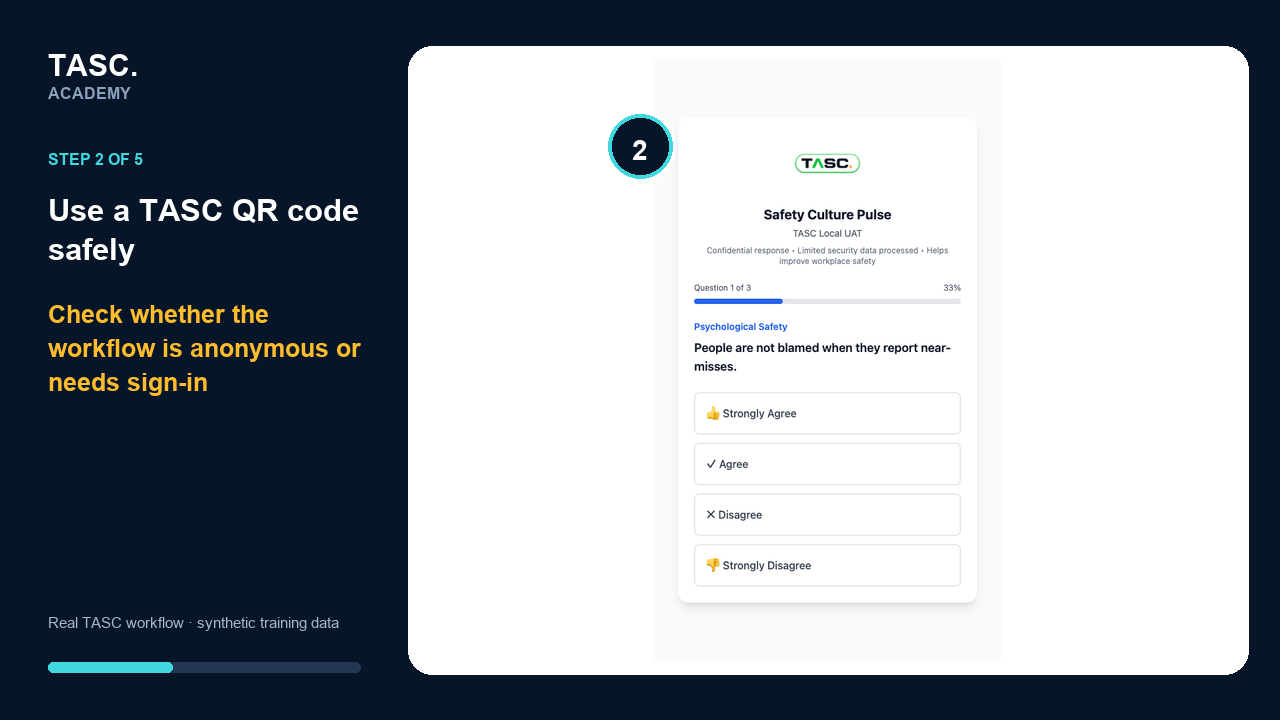 Step 2: Check the identity requirement
Read the data notice
Confirm what is collected, whether the submission is anonymous or identified and who may review it.
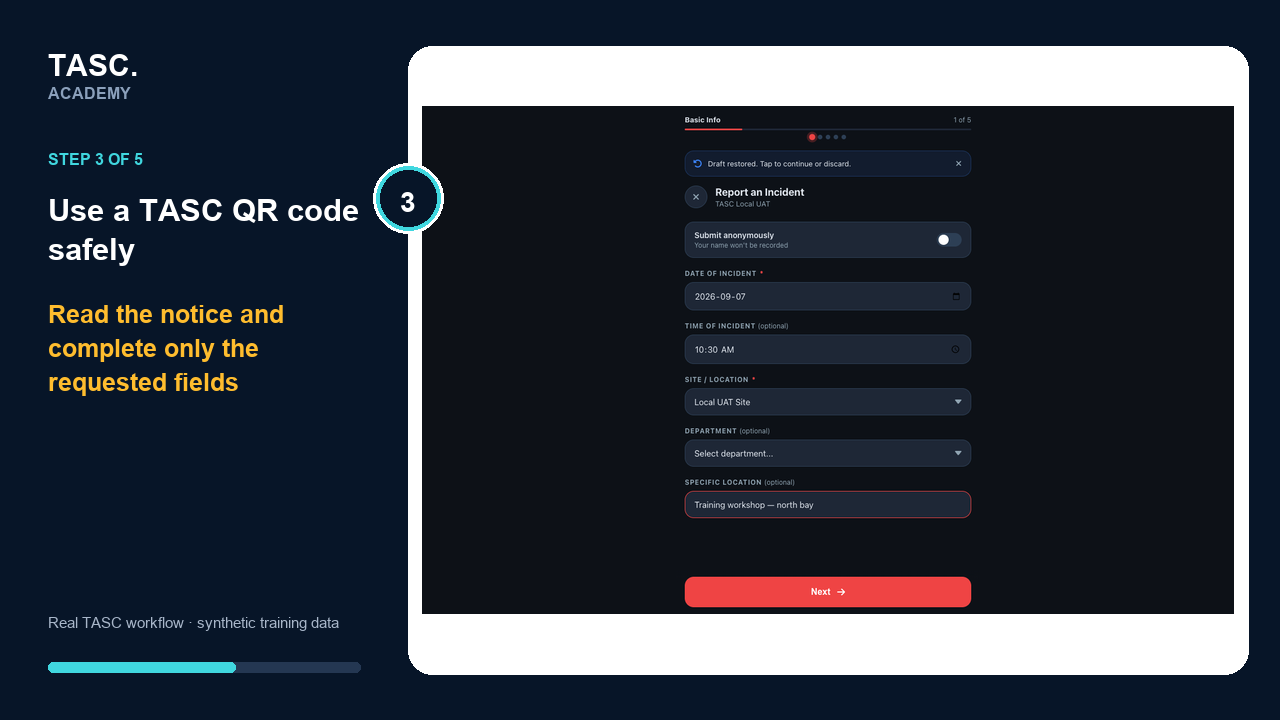 Step 3: Read the data notice
Complete only the intended task
Follow the displayed fields and do not submit unrelated personal or confidential information.
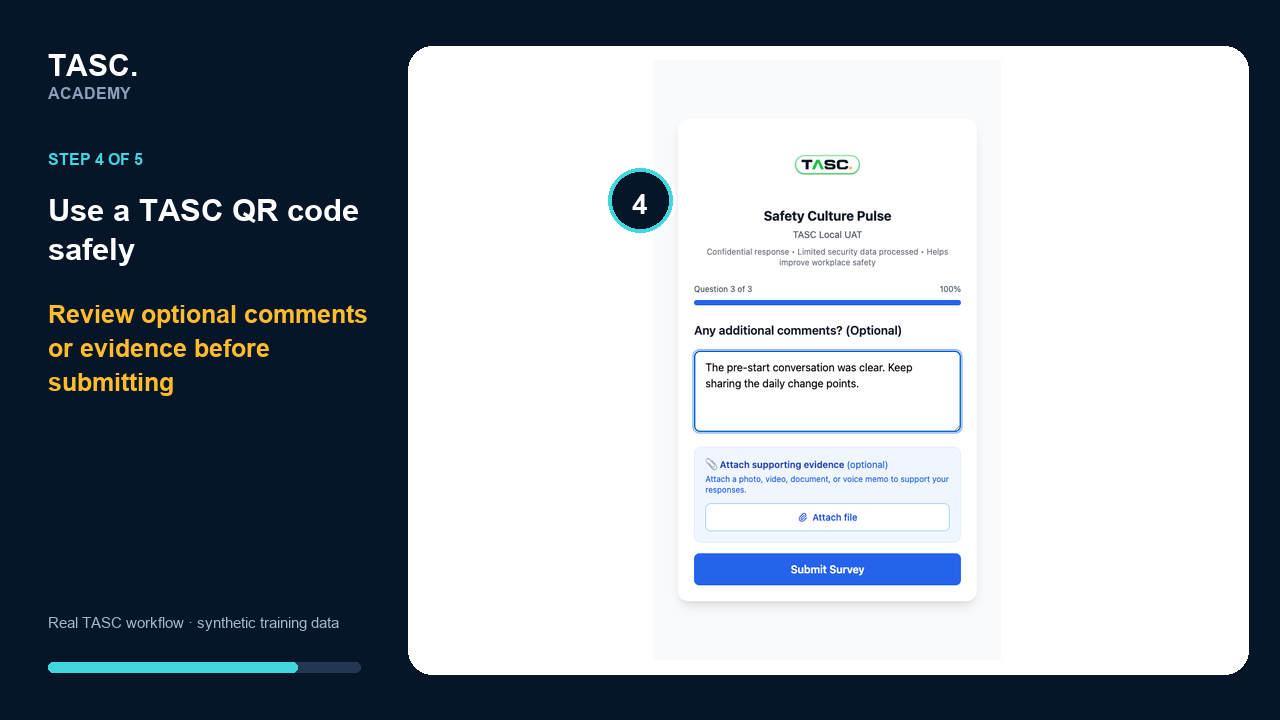 Step 4: Complete only the intended task
Stop if the code is inactive or incorrect
Do not use another site’s QR code as a workaround. Contact the posted site or TASC administrator.
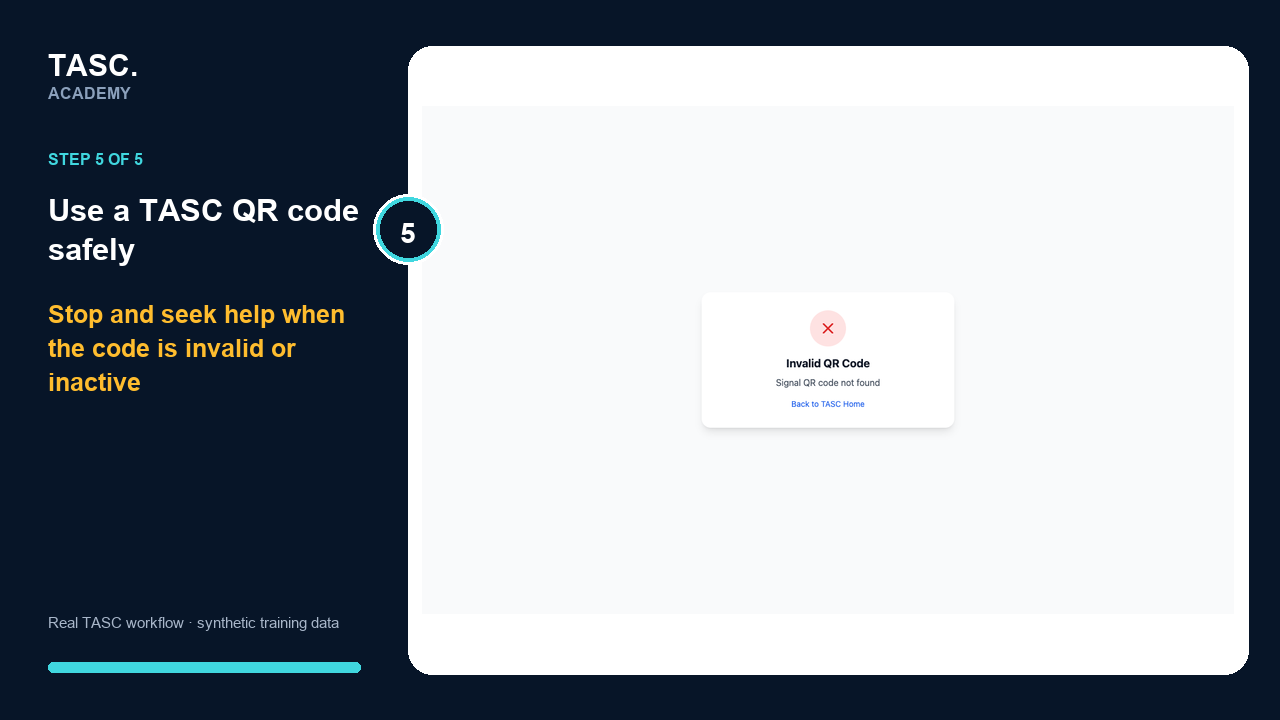 Step 5: Stop if the code is inactive or incorrect
Check that it worked
- The opening screen matches the posted purpose
- The information notice is understandable
- A confirmation or safe next step appears after submission
If something goes wrong
The code is inactive or belongs to another site.
Stop and contact the posted site owner. Do not search for another QR as a workaround.
The workflow unexpectedly requests sign-in.
Confirm the participant type and use the supported connected-worker route only when appropriate.
Before you begin and supporting details
Before you begin
- A QR code posted for the current site and task
- A supported phone camera or QR scanner
- The site contact shown with the QR when help is needed