Build and use your Safety Passport
Build a portable, worker-controlled safety profile that brings together readiness history, qualifications, employer connections, privacy choices and selected record sharing.
Watch first
Captioned walkthrough using the real TASC screen
Do the task
Follow these steps in order
Create your Passport or sign in
Create a personal worker account or return to your existing Passport. Review the current Terms and Privacy information and avoid creating a second profile when you already have one.
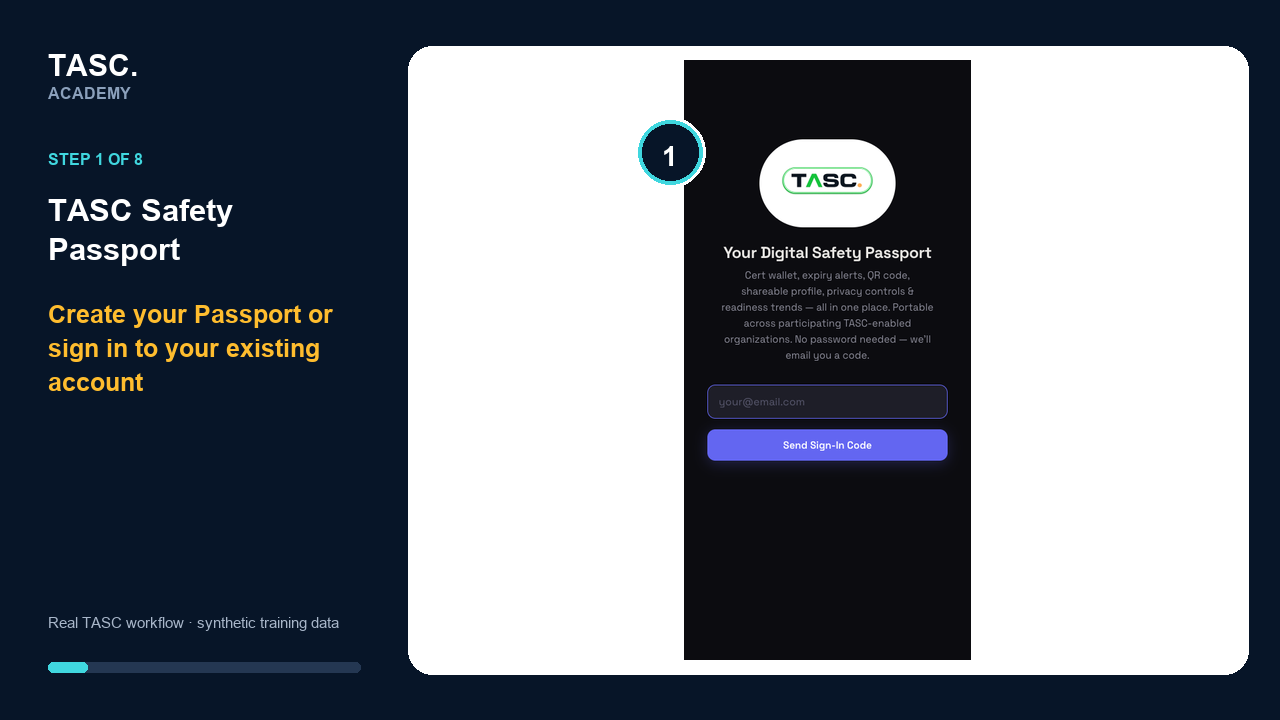 Step 1: Create your Passport or sign in.
Understand what your Passport brings together
Use the Passport home as your worker-owned entry to certifications, cognitive readiness, employer sites, training, wellbeing, field activity and selected safety records.
Your Passport is designed to stay with you across participating TASC-enabled organizations. An employer connection does not turn it into an employer-owned profile.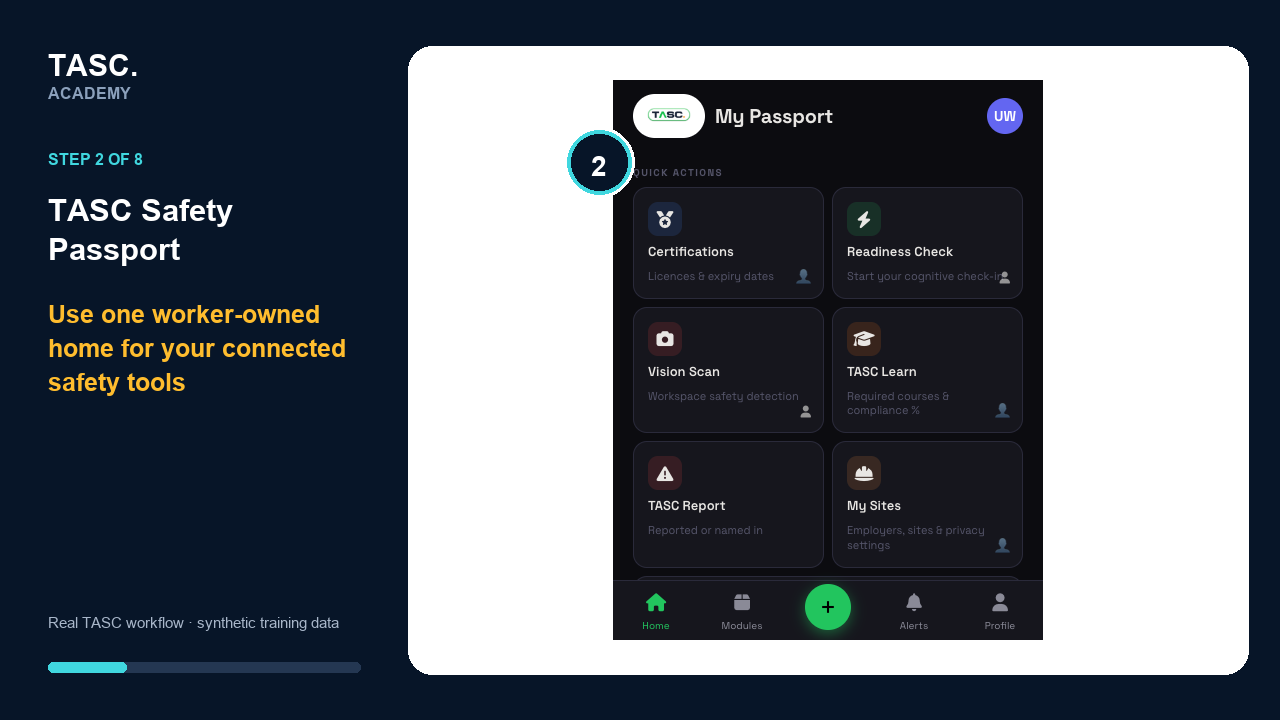 Step 2: Understand what your Passport brings together.
Build and use your readiness baseline
Complete supported readiness check-ins to establish your personal baseline, then use the readiness screen to review recent results, trends and check-in history.
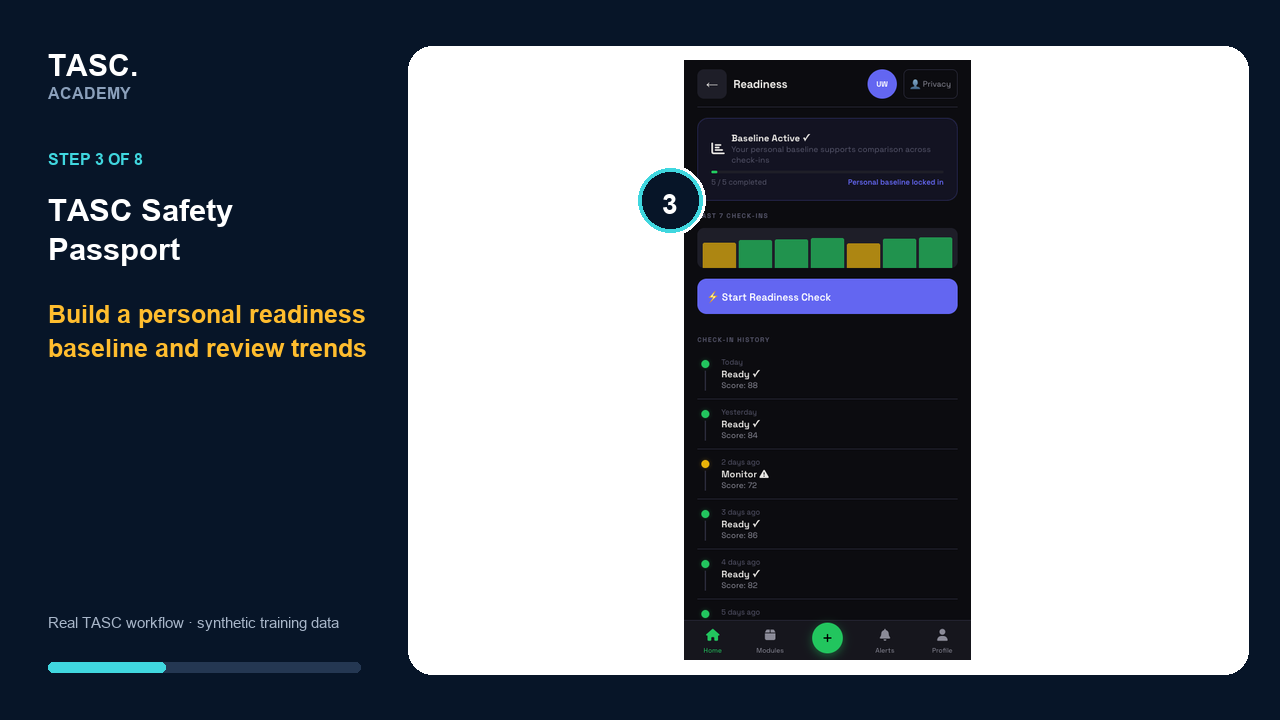 Step 3: Build and use your readiness baseline.
Complete a readiness check
Start the live cognitive check-in and follow the calibration, reaction, attention and result stages. Use the result as a prompt for the supported next action—not as a medical diagnosis.
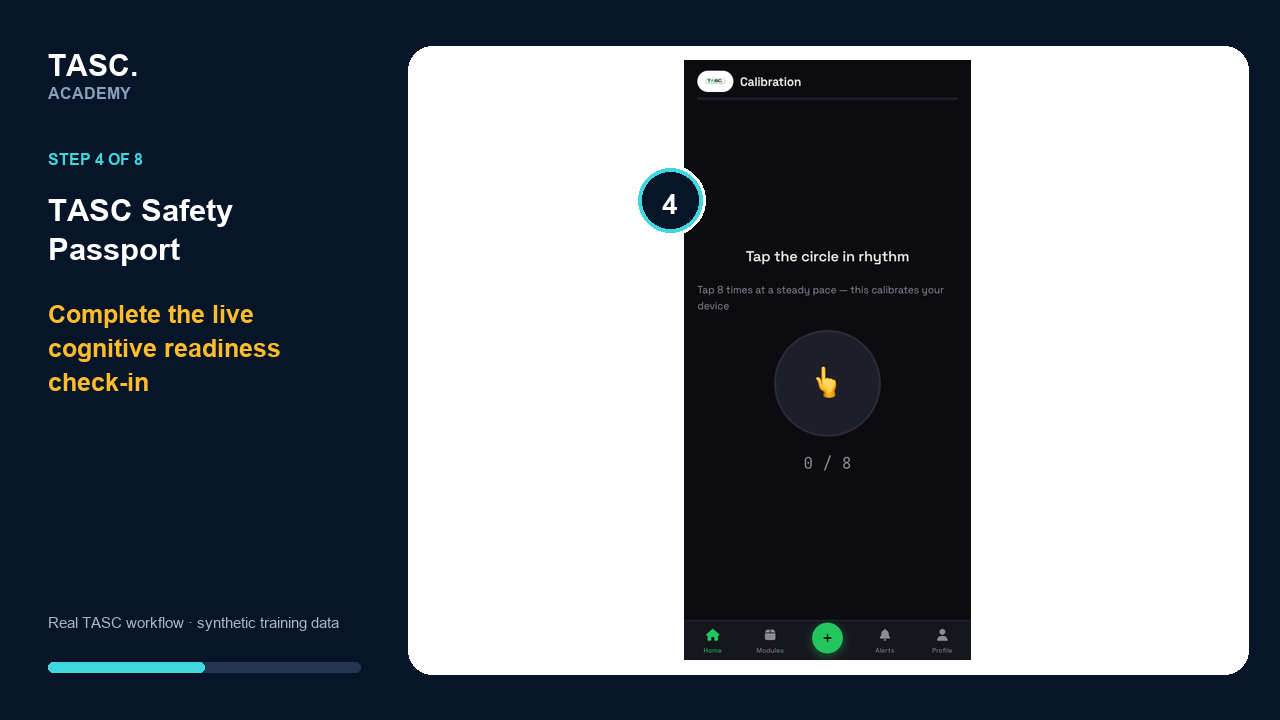 Step 4: Complete a readiness check.
Maintain qualifications and expiry dates
Add licences and safety cards with the correct issuer, issue date, expiry date, identifier and suitable evidence. Review Valid, Expiring and Expired filters regularly.
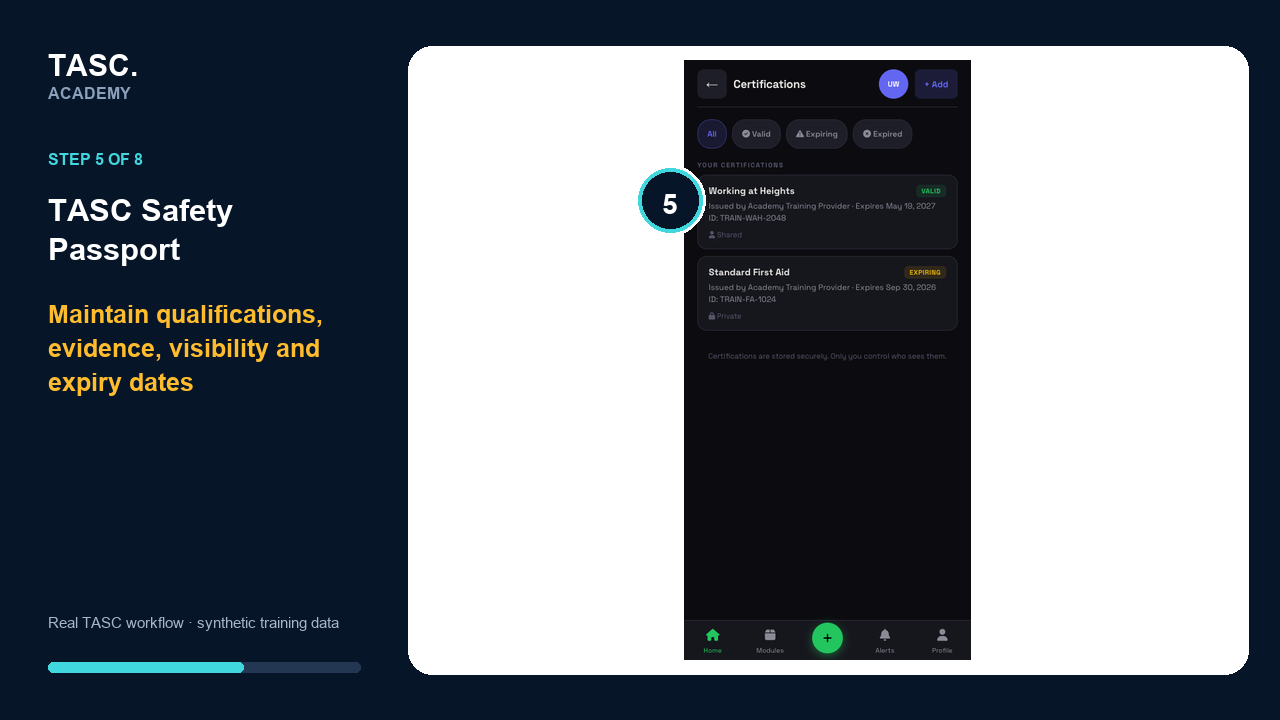 Step 5: Maintain qualifications and expiry dates.
Connect to employers and control sharing
Accept the correct invitation or join route, then review per-employer controls for readiness history, certifications, TASC Learn records, emergency contacts and named or anonymous participation.
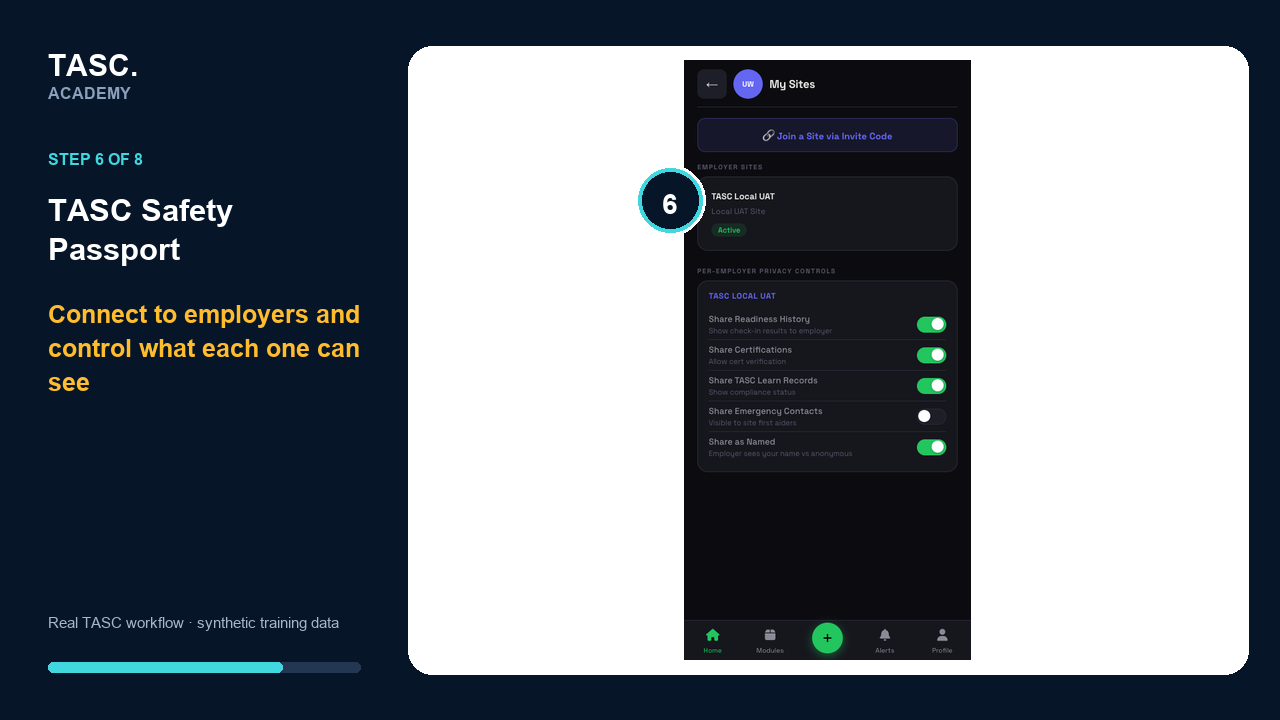 Step 6: Connect to employers and control sharing.
Create a portable safety record
Choose which supported Passport areas to include before exporting or creating a time-limited share link. Review the record before giving it to a recipient.
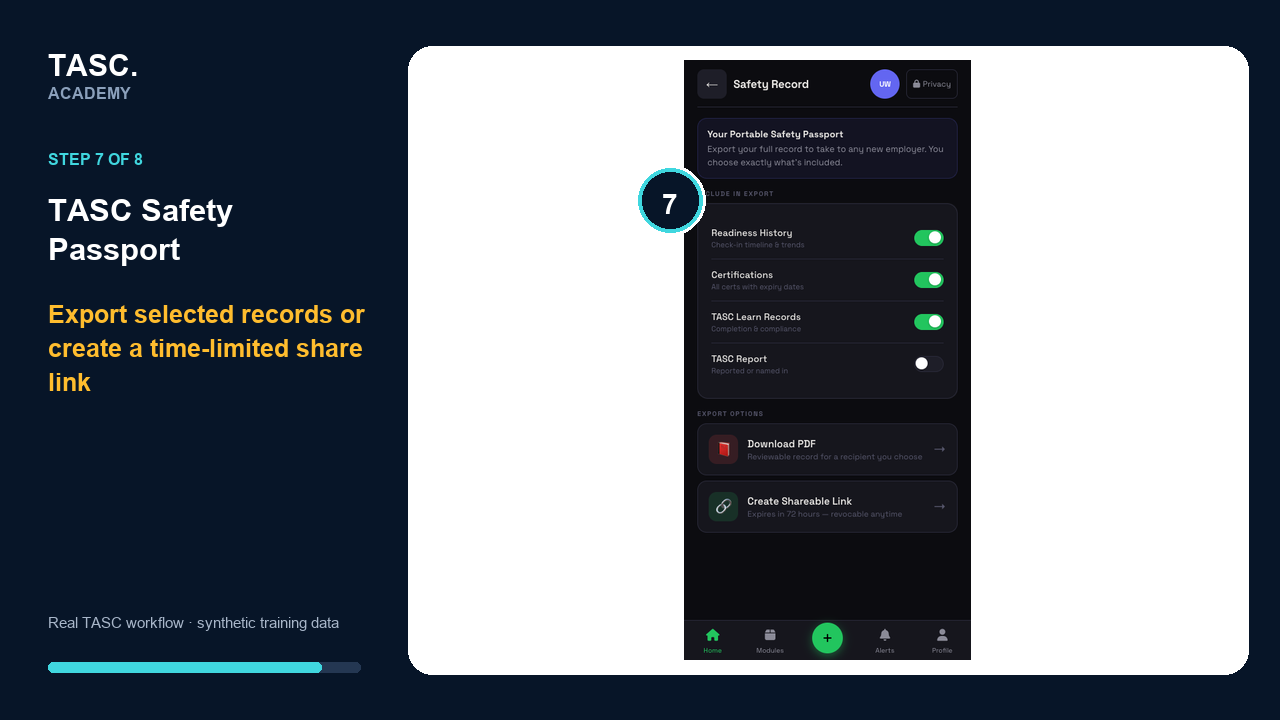 Step 7: Create a portable safety record.
Share and maintain your Passport
Use your Passport QR or supported share link when appropriate, keep your profile and evidence current, respond to employer requests deliberately and revisit privacy choices whenever work changes.
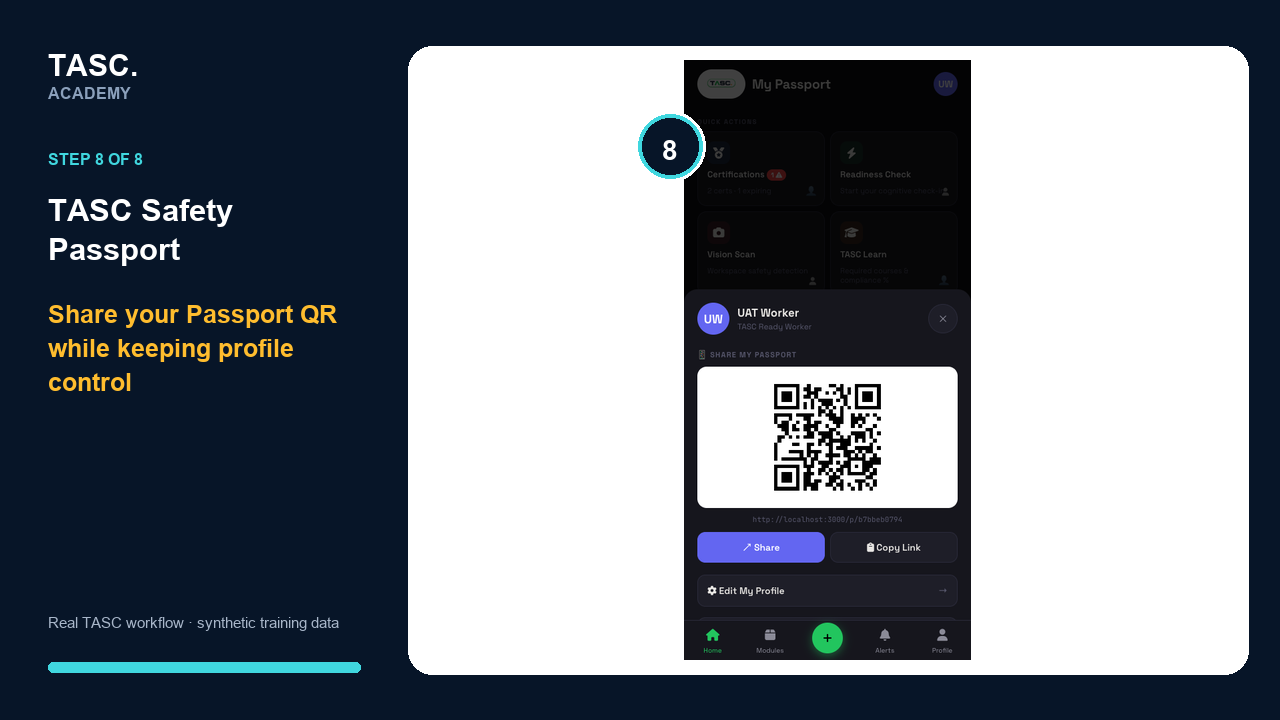 Step 8: Share and maintain your Passport.
Check that it worked
- Profile and display name are correct
- Readiness history and baseline state appear after supported check-ins
- Certification dates, status and evidence are accurate
- The intended employer and site connection appears
- Per-employer sharing choices can be reviewed and changed
- Export or share output contains only the selected Passport areas
If something goes wrong
A qualification is missing or expired.
Add or update the record with accurate dates and suitable evidence; do not alter dates to satisfy a readiness check.
The organization name is unexpected.
Stop before connecting and verify the invitation with the employer or site contact.
A readiness result is unexpected.
Follow the supported on-screen guidance and workplace process. Do not treat the Passport result as medical advice.
Before you begin and supporting details
Before you begin
- An email account available for sign-in
- Current qualification records the worker is allowed to upload
- An employer invitation or approved join route when connecting
- A quiet, supported setting for the readiness check