All lessons
Workforce HoursVideo + step screenshots
Workforce Hours: complete walkthrough
Enter and verify exposure hours so incident rates and safety analytics use the correct denominator.
10 minutes5 stepsCore
Watch first
Captioned walkthrough using the real TASC screen
Do the task
Follow these steps in order
0 of 50%
Review existing periods
Confirm the latest recorded period, site and source before adding or replacing hours.
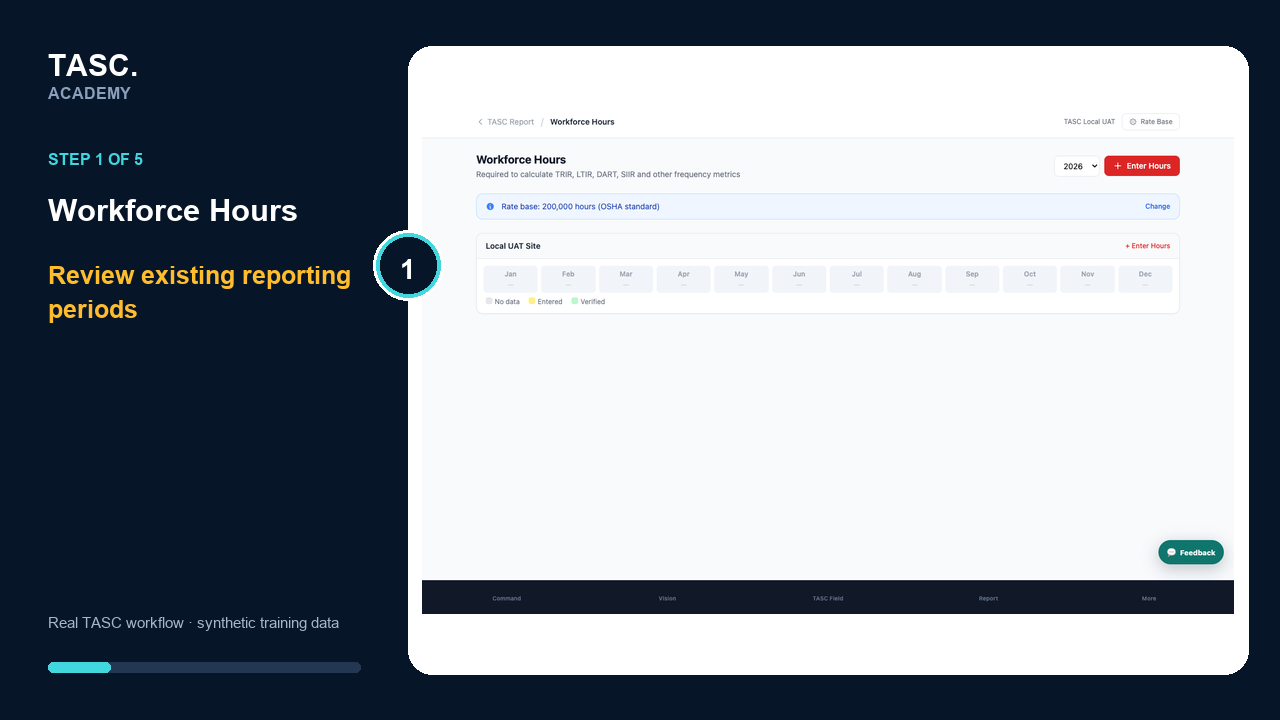 Step 1: Review existing periods
Choose period and scope
Select the reporting month or range and the correct organization or site context.
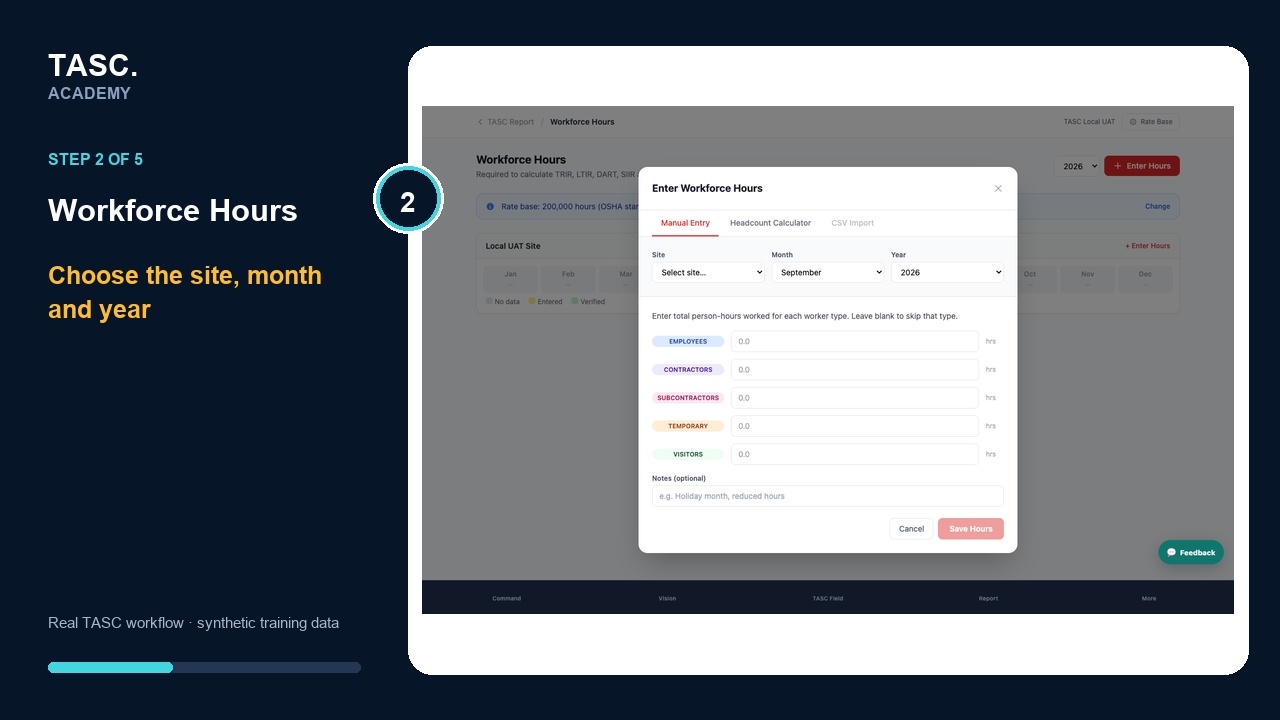 Step 2: Choose period and scope
Enter workforce hours
Use the approved source and enter the total with any required notes or supporting reference.
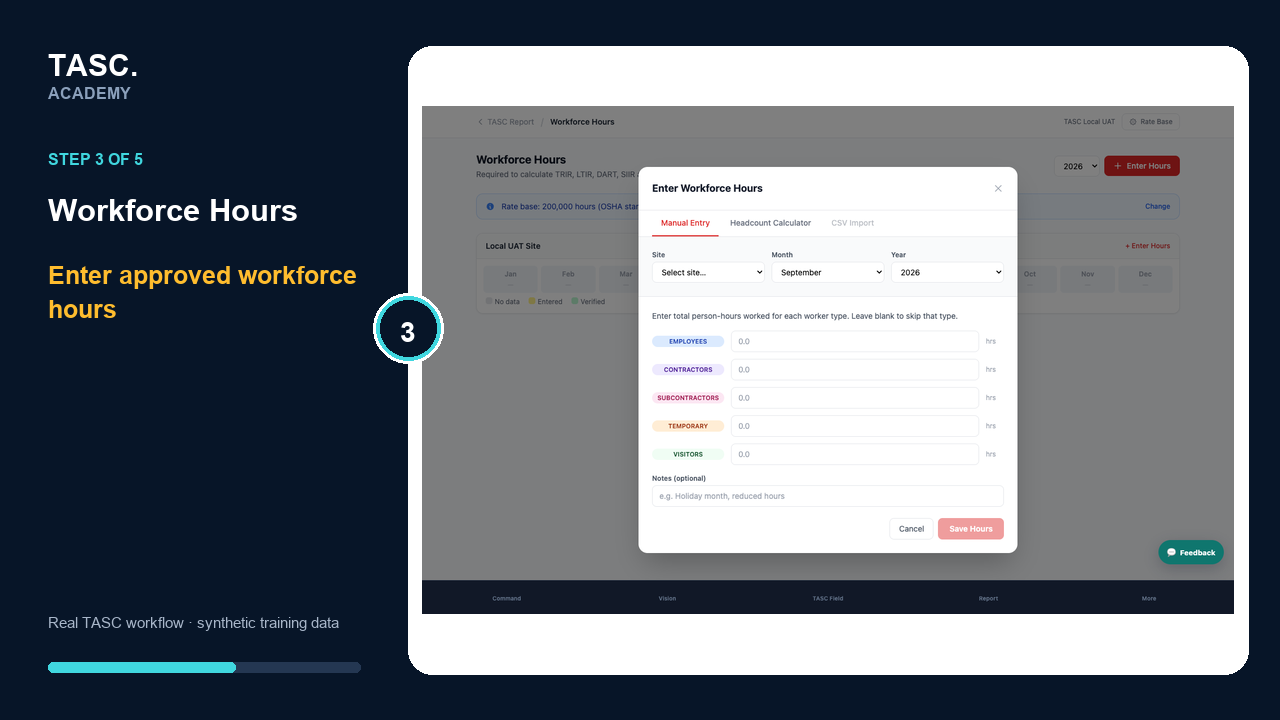 Step 3: Enter workforce hours
Save and reconcile
Compare the saved figure with the source and check for duplicates or gaps.
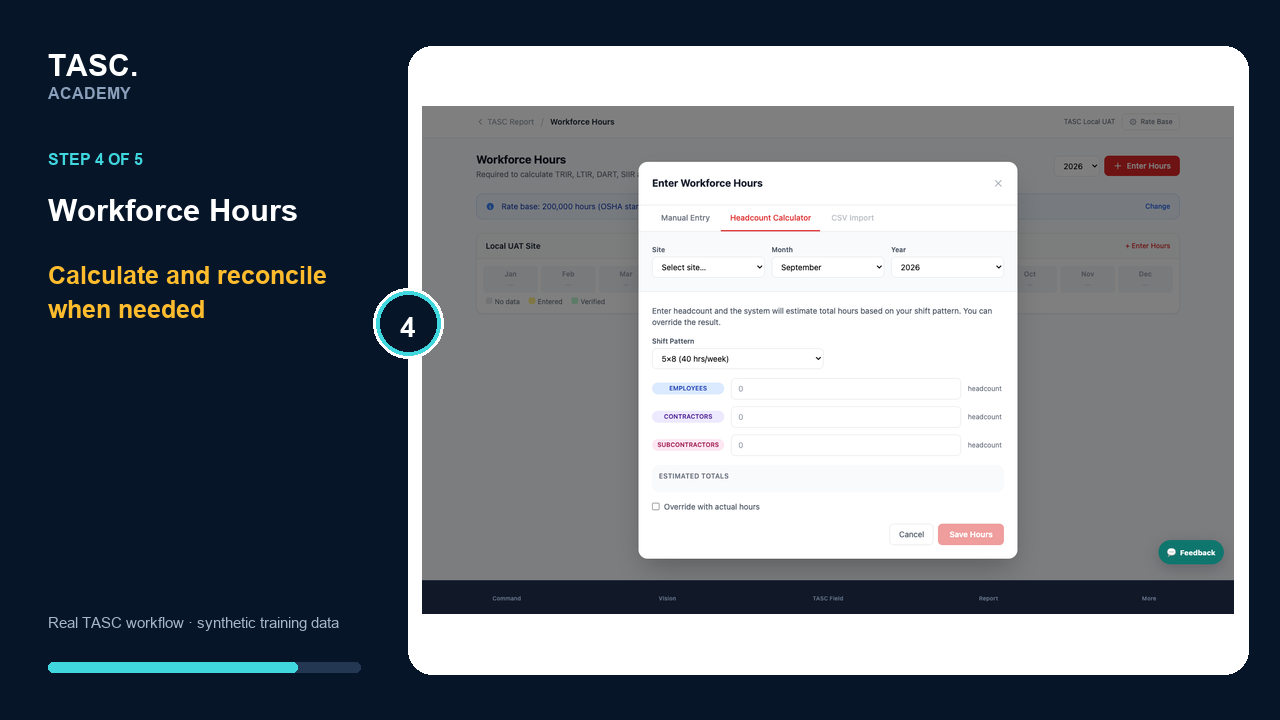 Step 4: Save and reconcile
Verify analytics
Confirm affected incident-rate or analytics views now show the intended period and denominator.
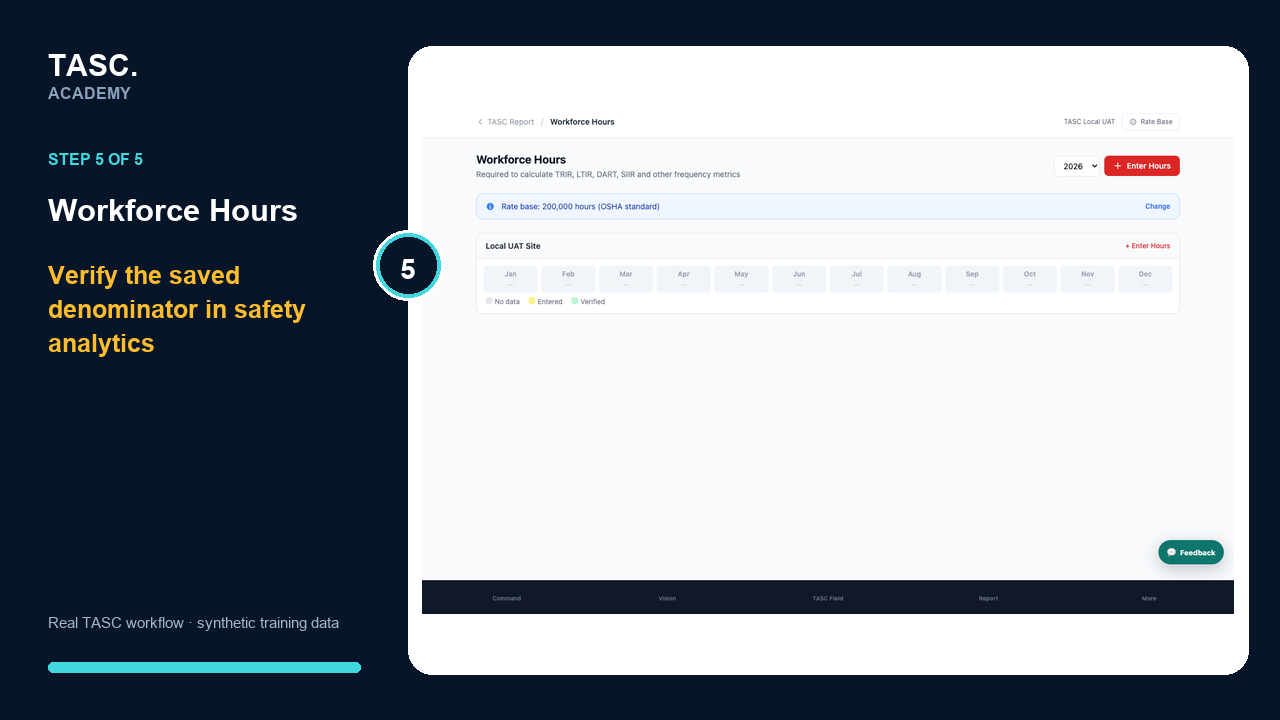 Step 5: Verify analytics
Check that it worked
- Period and site are correct
- Hours reconcile to the approved source
- No duplicate period exists
- Analytics uses the saved value
If something goes wrong
A rate changes unexpectedly.
Reconcile the incident count, period filters and workforce-hours denominator together.
Before you begin and supporting details
Before you begin
- Organization-administrator or authorized supervisor access
- The correct organization and site context
- A synthetic test case before changing live operational information
Find it in TASC
Employer PortalWorkforce Hours