All lessons
Billing & SubscriptionVideo + step screenshots
Billing & Subscription: complete walkthrough
Review plan, capacity, add-ons, modules, cost summary and invoices before applying a subscription change.
10 minutes5 stepsCore
Watch first
Captioned walkthrough using the real TASC screen
Do the task
Follow these steps in order
0 of 50%
Review the base plan
Confirm the current plan, billing period and included capacity.
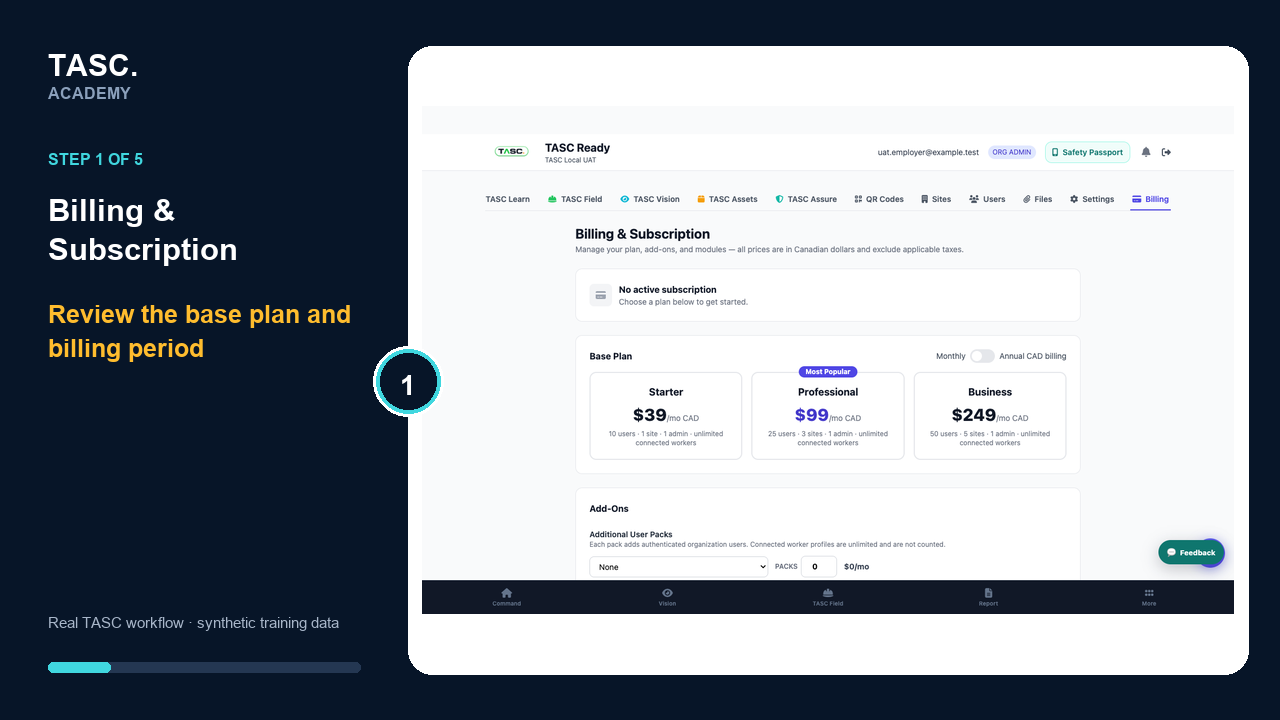 Step 1: Review the base plan
Review capacity and add-ons
Compare member, site, SMS, Vision and other supported add-ons with actual operating needs.
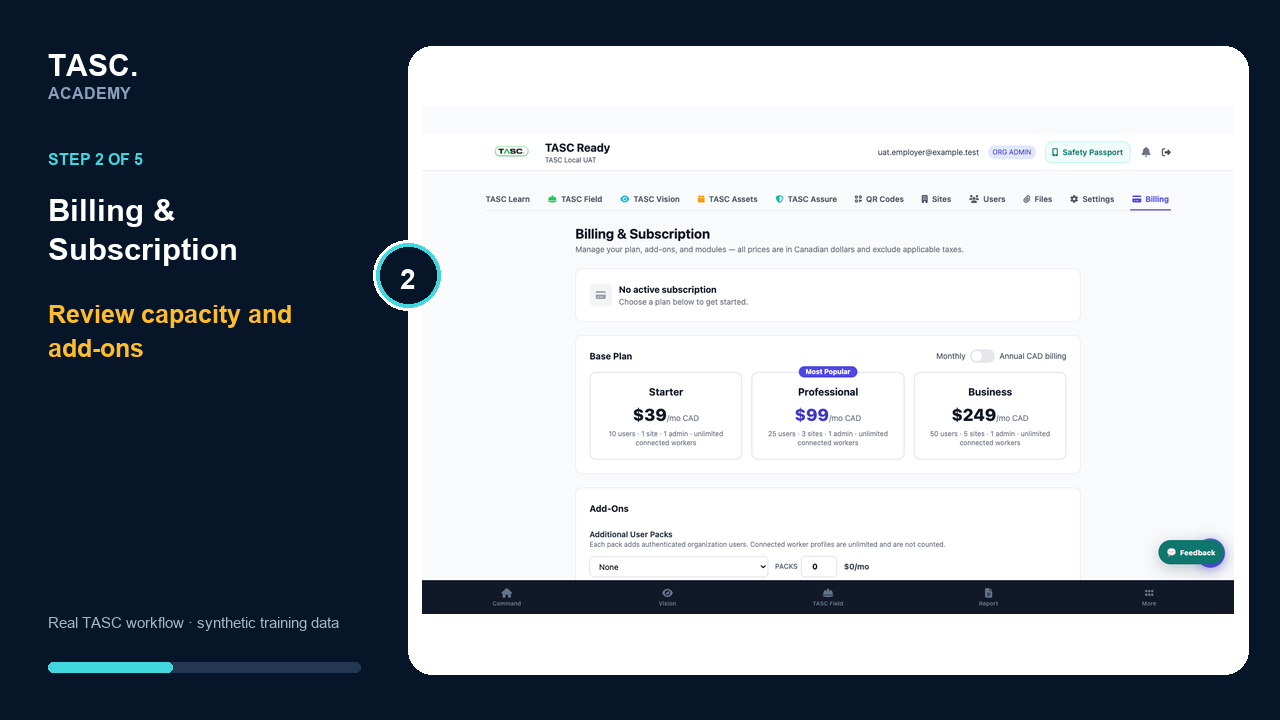 Step 2: Review capacity and add-ons
Review enabled modules
Check which modules are included or selected and the operational effect of changing availability.
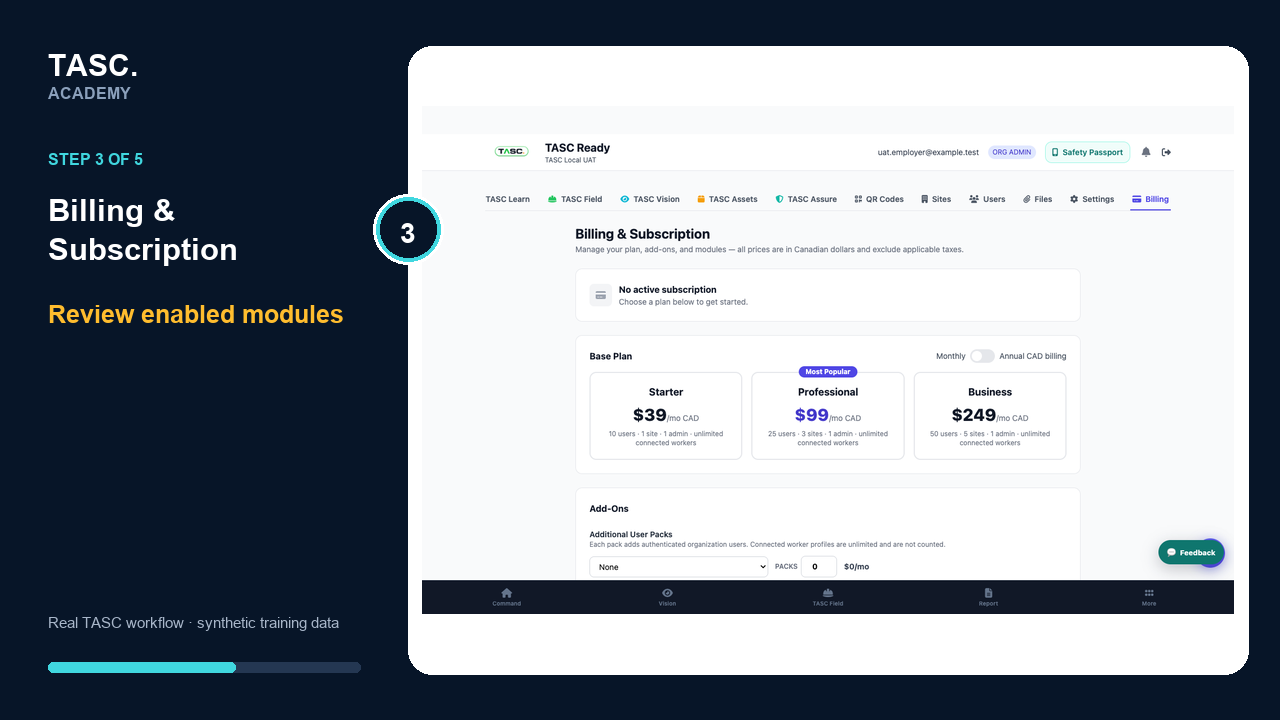 Step 3: Review enabled modules
Confirm the cost summary
Review currency, billing period, recurring total and any immediate change shown before updating.
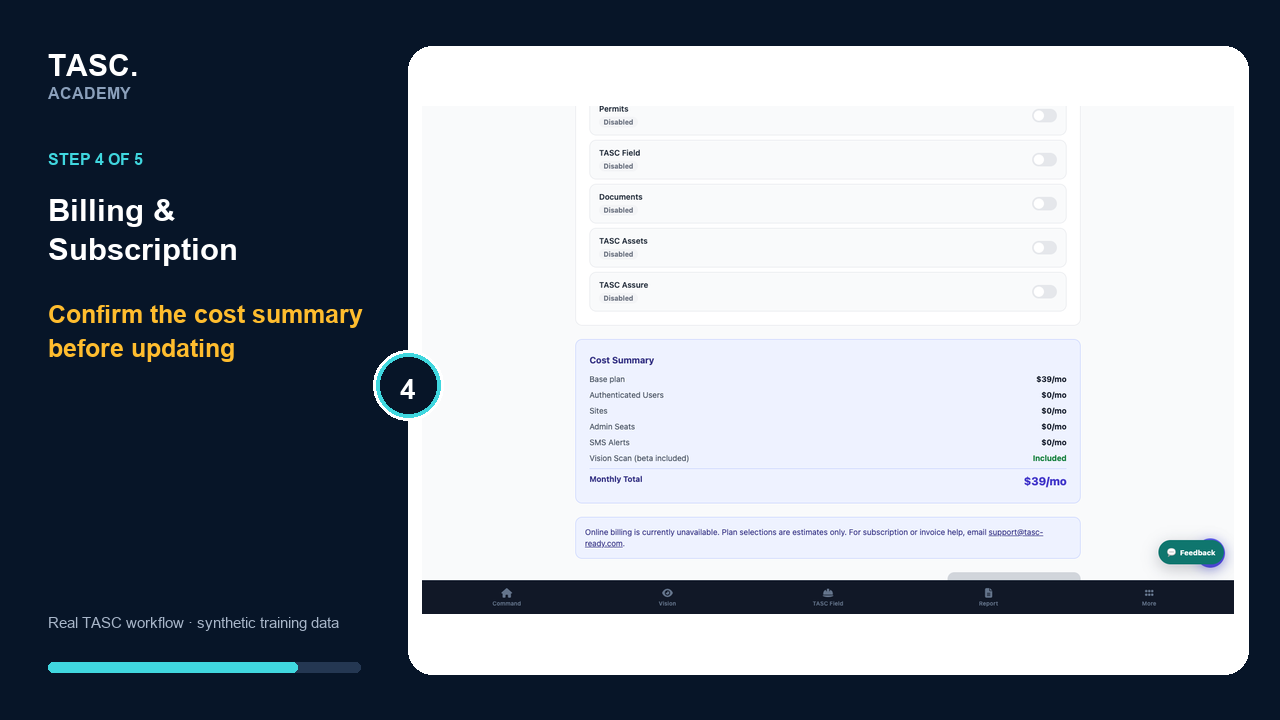 Step 4: Confirm the cost summary
Update and verify
Use an authorized billing owner, retain confirmation and verify plan, capacity and invoice history after the change.
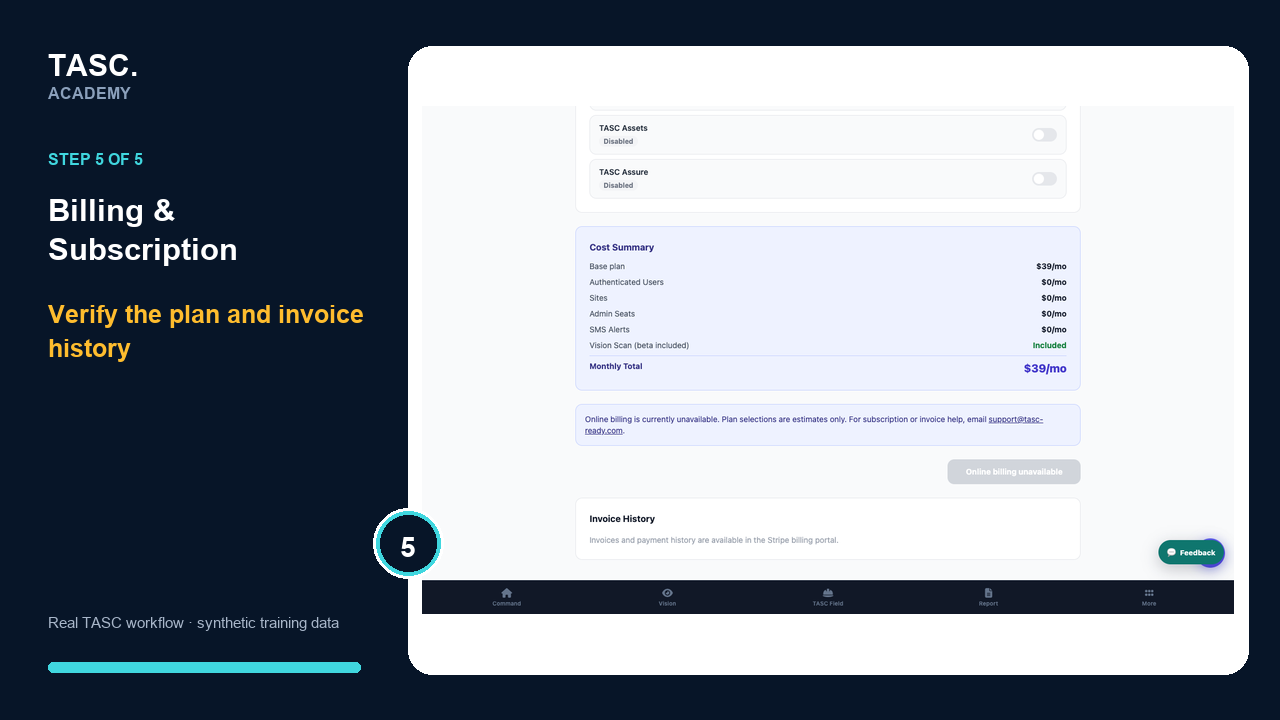 Step 5: Update and verify
Check that it worked
- Plan and billing period are correct
- Capacity matches the intended users and sites
- Module changes are understood
- Confirmation and invoice history are available
If something goes wrong
The expected module or capacity is missing.
Check subscription status and the saved billing selection before changing user permissions or duplicating records.
Before you begin and supporting details
Before you begin
- Organization-administrator or authorized supervisor access
- The correct organization and site context
- A synthetic test case before changing live operational information
Find it in TASC
Employer PortalBilling