Give feedback and verify an improvement
Send useful product feedback, follow the AI-assisted review and approval path, then retest and verify the released improvement.
Watch first
Captioned walkthrough using the real TASC screen
Do the task
Follow these steps in order
Open Feedback from your TASC workspace
Use the floating Feedback button while you are on the screen that needs attention so TASC can retain the relevant route and product context.
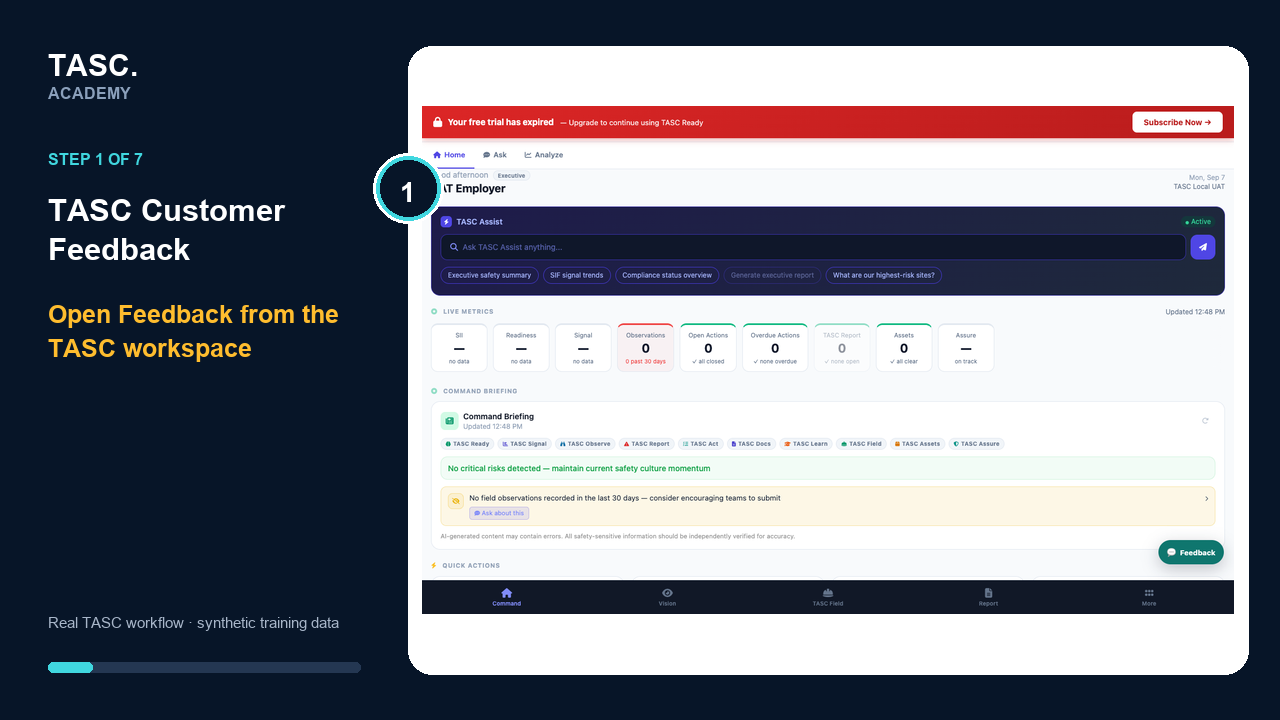 Step 1: Open Feedback from the TASC workspace.
Describe the issue and its impact
Choose the feedback type and impact, add a short title, then explain what happened. Add expected and actual results when they make the request clearer.
Do not include passwords, sign-in codes, medical details or sensitive incident information. Crop or blur private content before attaching a screenshot.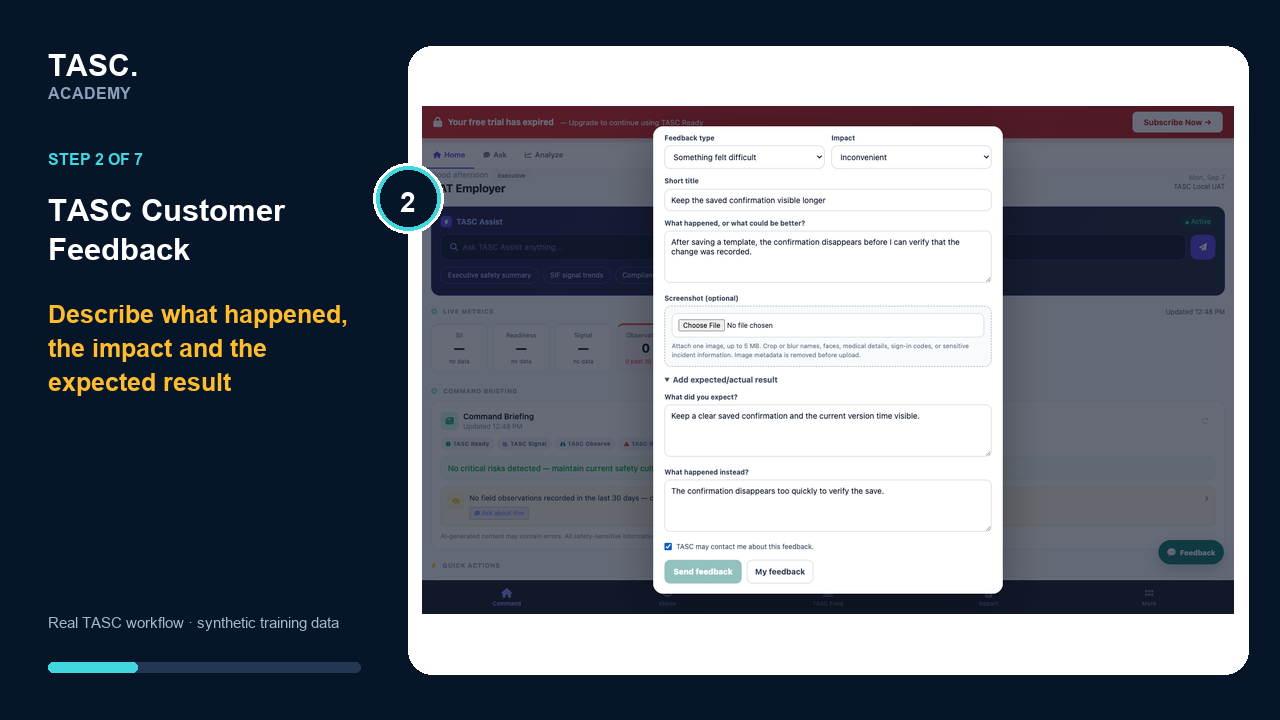 Step 2: Describe the issue, impact and expected result.
Keep the reference and track the status
After submission, keep the reference ID and use My feedback to see whether the item is new, under review, approved, in progress or ready for retest.
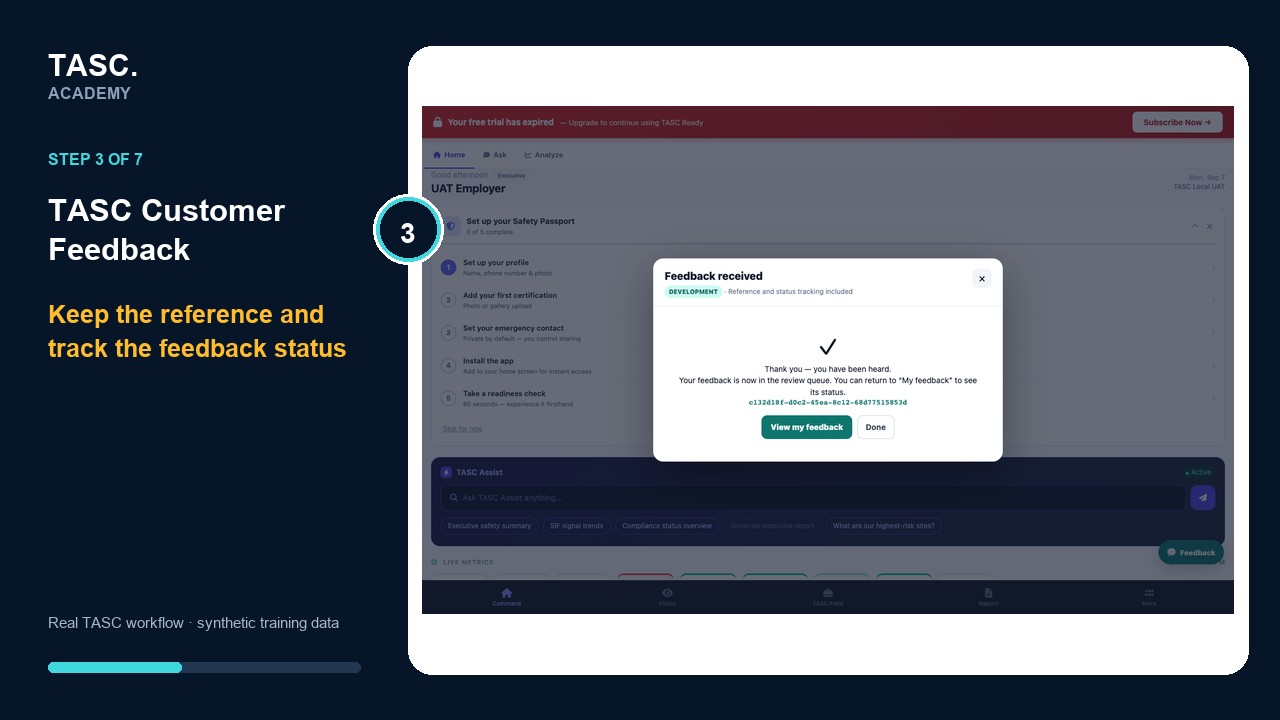 Step 3: Keep the reference and track the item.
Understand the AI-assisted review
TASC automatically prepares a privacy-safe review proposal from the feedback text and aggregate product signals. Reporter identity and screenshots are not sent to the AI provider.
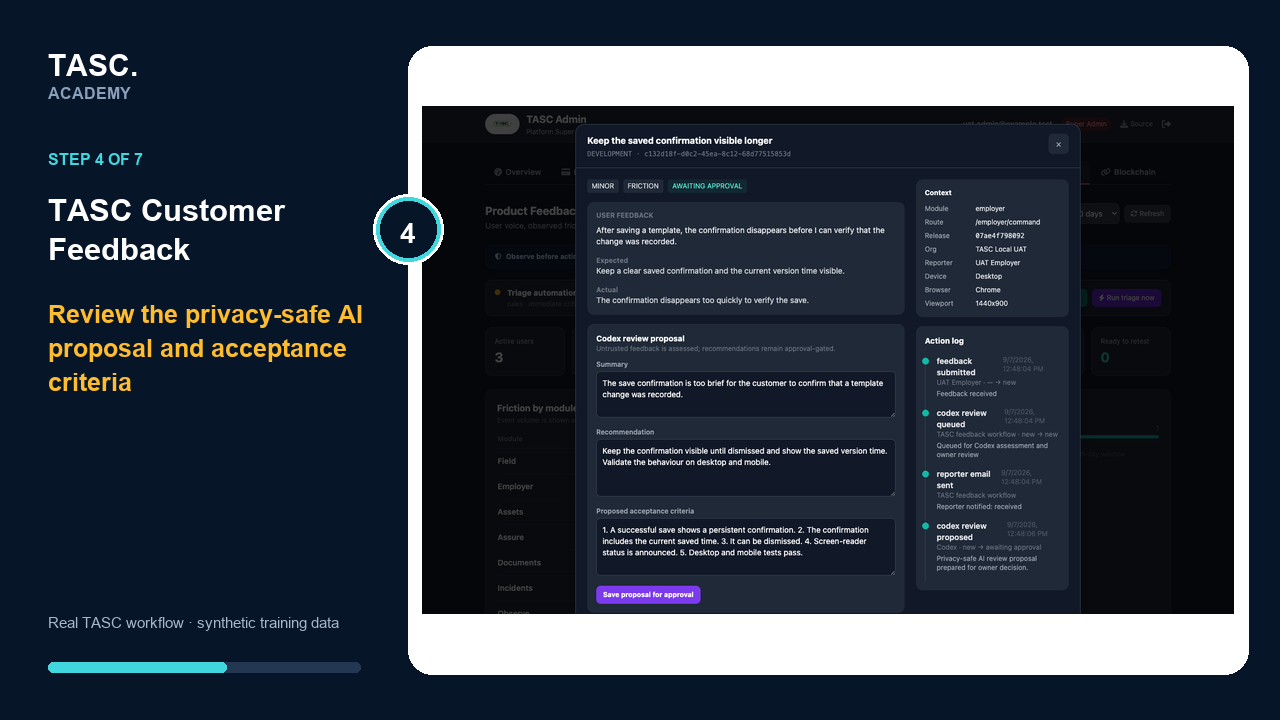 Step 4: Review the AI proposal and acceptance criteria.
Wait for owner approval and controlled release
An accountable owner reviews the proposed recommendation and acceptance criteria. Approval records the decision; implementation, testing and release remain controlled steps.
Customer feedback does not deploy code automatically. AI proposes; a human owner approves; the tested change is released through the normal product process.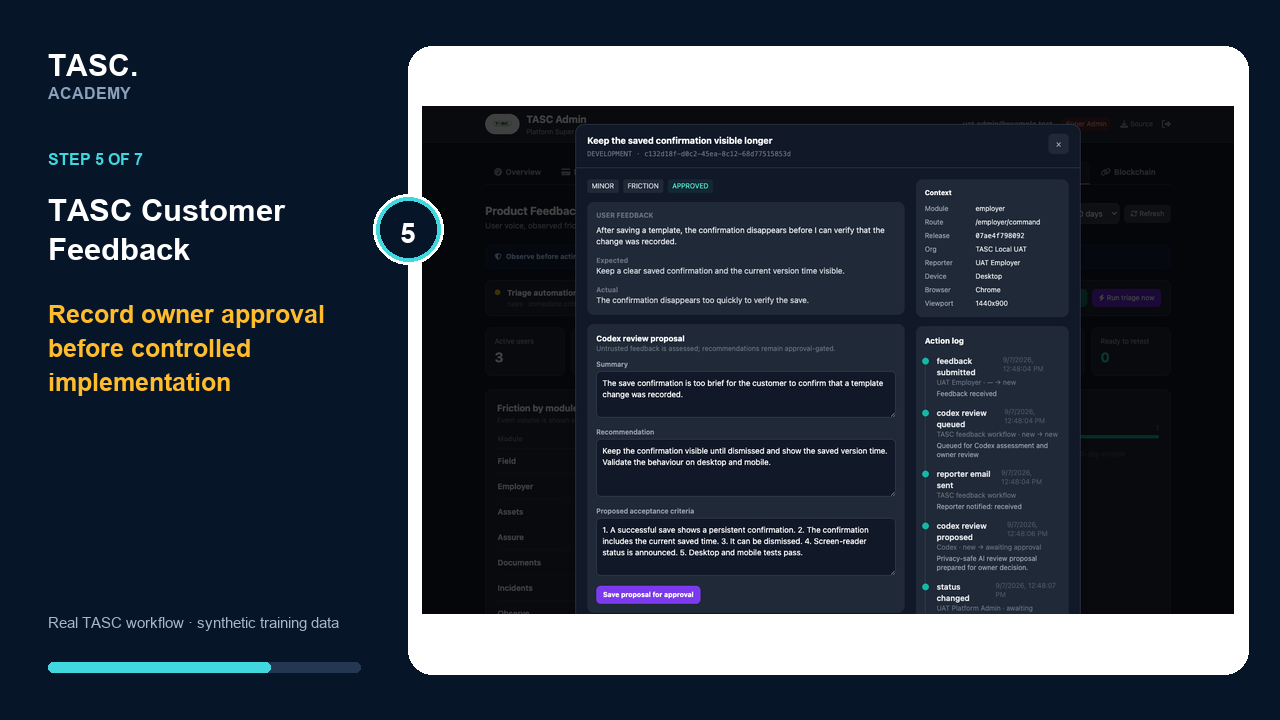 Step 5: Record owner approval before implementation.
Retest the improvement
When the status becomes Ready for retest, repeat the original task in TASC and compare the result with the acceptance criteria.
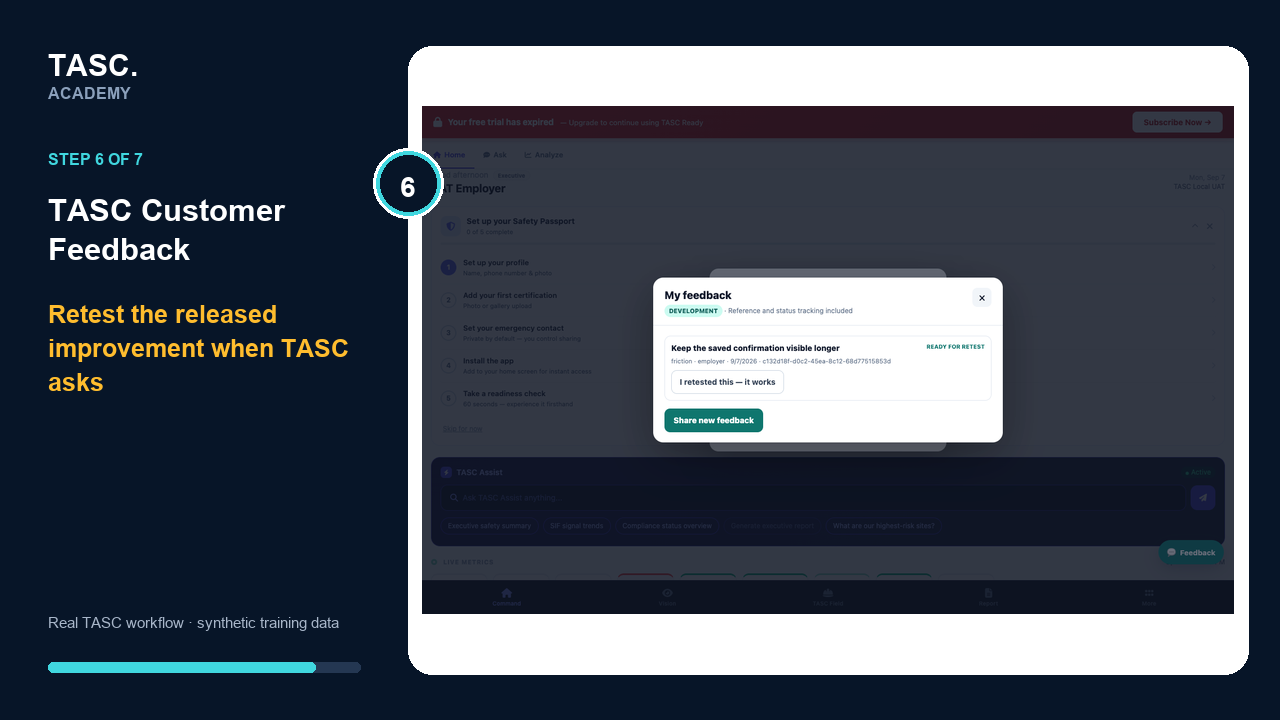 Step 6: Retest the released improvement.
Verify that it works
Choose “I retested this — it works” only after the original problem is resolved. Your verification closes the feedback loop and becomes part of the decision history.
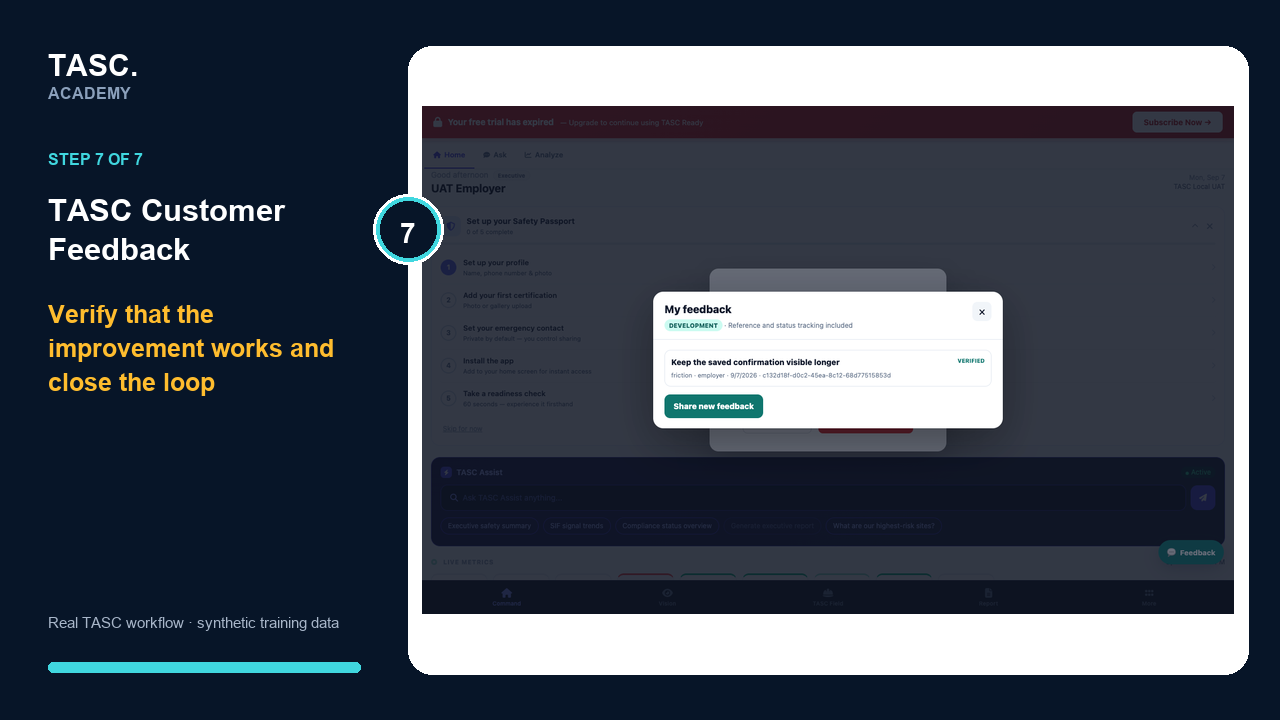 Step 7: Verify that the improvement works.
Check that it worked
- A confirmation and reference ID appear after submission
- The item is visible in My feedback
- The owner decision and status progression are recorded
- Ready for retest appears only after controlled implementation and testing
- Customer verification changes the item to Verified
If something goes wrong
The report does not explain what should have happened.
Add the original task, expected result, actual result and operational impact without including sensitive information.
The item says Ready for retest but the issue remains.
Do not verify it. Retest the original steps, keep the evidence and use the feedback route to explain what still fails.
Before you begin and supporting details
Before you begin
- The screen or workflow that needs attention
- A concise description of what happened
- The expected result and the impact on the task
- A privacy-reviewed screenshot only when it adds useful evidence